
Artintech ERP’s Shipping module runs order fulfillment end to end: sales order fulfillment, picking orders, packing orders, shipping orders, loading sheets, and delivery orders. This tutorial walks through the flow.
1. The Shipping module at a glance #
The module’s sub-sections:
- Itemized Fulfillment Report — filterable report (customer, SO #, fulfillment status, sales person, item, SKU, date range) with quantity sold/shipped/pending summary.
- Sales Order Fulfillment List — sales orders ready for picking, with picking status, earliest delivery due, pending items, and available-to-pick quantities. The “Create Picking Order” bulk action starts the flow.
- Picking Order List — picking orders with status, earliest delivery due, and pending/available items.
- Packing Order — packing orders with customer, SO #, assignee, status, delivery due, and pending items.
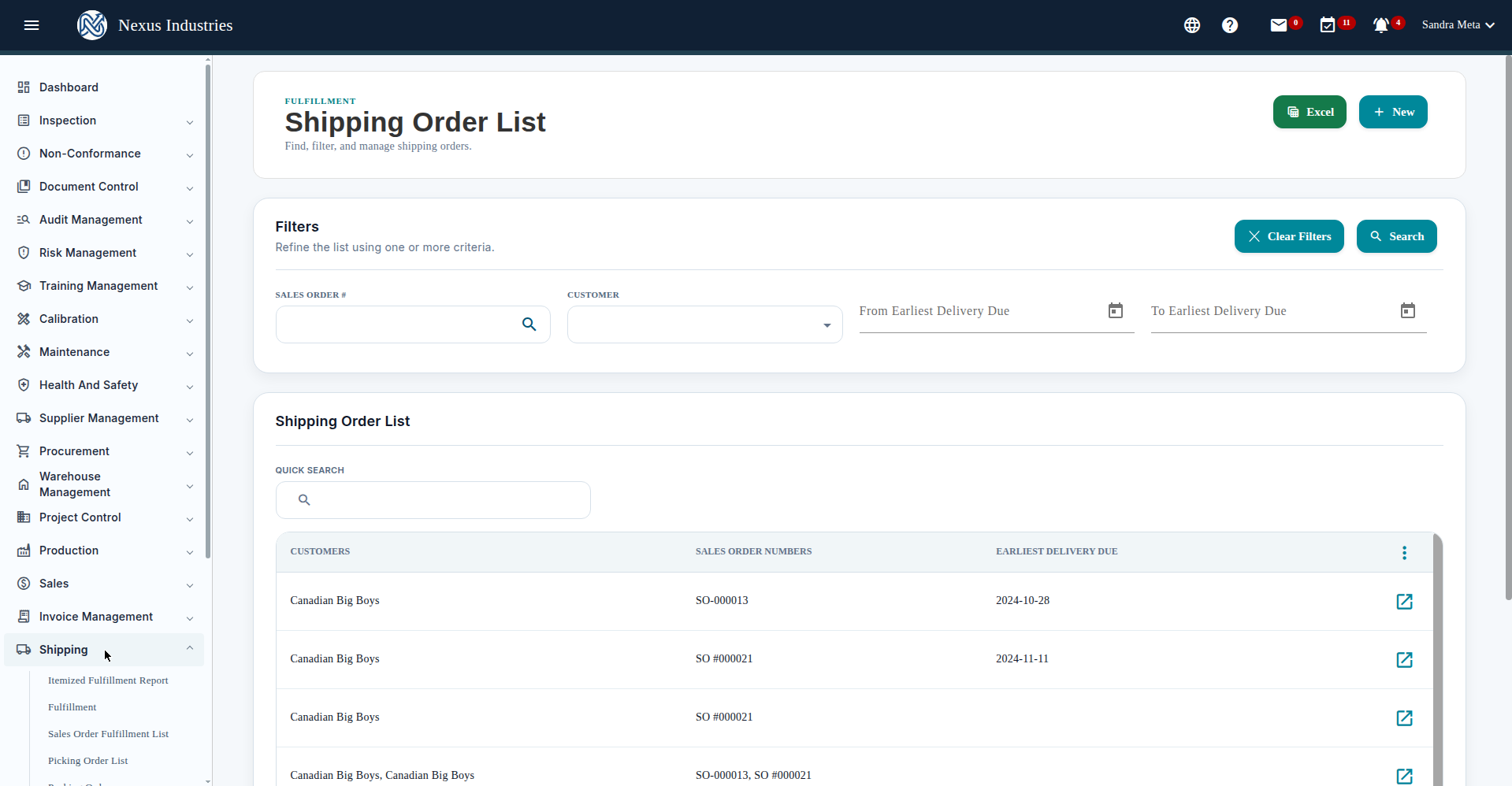
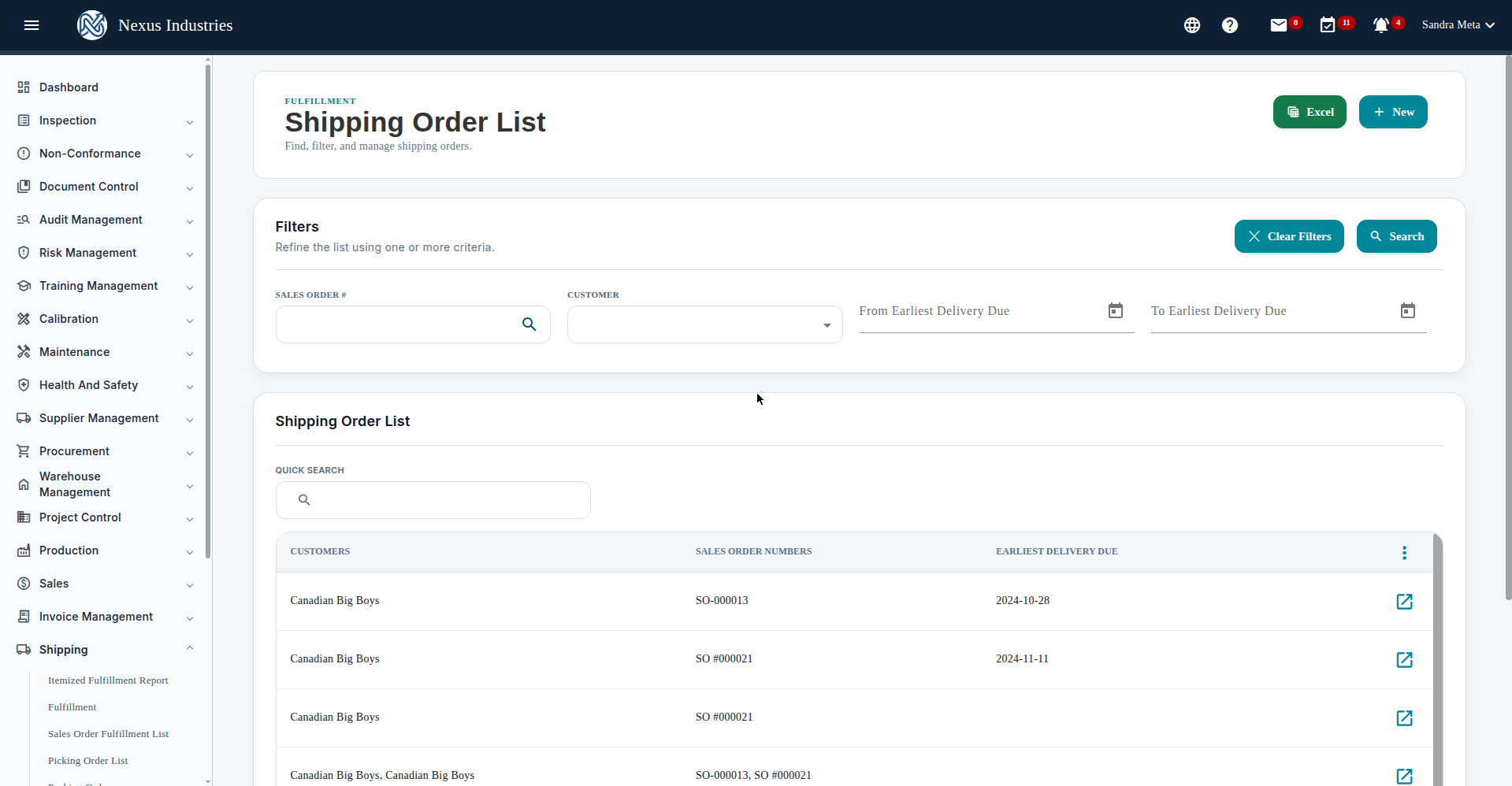
- Shipping Order — shipping orders with customers, sales order numbers, and earliest delivery due.
- Loading Sheet — delivery vehicles (name, driver, model, make).
- Delivery Order List — delivery orders with SO #, customer, and vehicle.
- Settings — fulfillment settings and delivery vehicles.
2. Start from the fulfillment list #
Go to the Sales Order Fulfillment List to see which orders are ready. Each row shows picking status, earliest delivery due, pending items, and available-to-pick quantities. Select orders and click Create Picking Order to start.
3. Pick items #
On the picking order, pick items and allocate batches via Material Selection — the form shows batch quantities so you can allocate exactly what’s on the shelves.
4. Pack boxes #
The Packing Order assigns picked items into boxes: for each box, use Package #/QTY/Pack to fill it, then track the packed boxes with their weights. Demo: PAC #000006 for AtlasLogistics — 1 box, 851KG, delivery due 2026-10-09.
5. Load and ship #
On the Shipping Order:
- Click New, then set the Delivery Due date.
- Select packages and assign a Delivery Vehicle per package.
- Click Load — tracking numbers are generated automatically, and the Selected-box panel shows Box ID, Weight, Load To, and Tracking #.
- Submit to finalize.
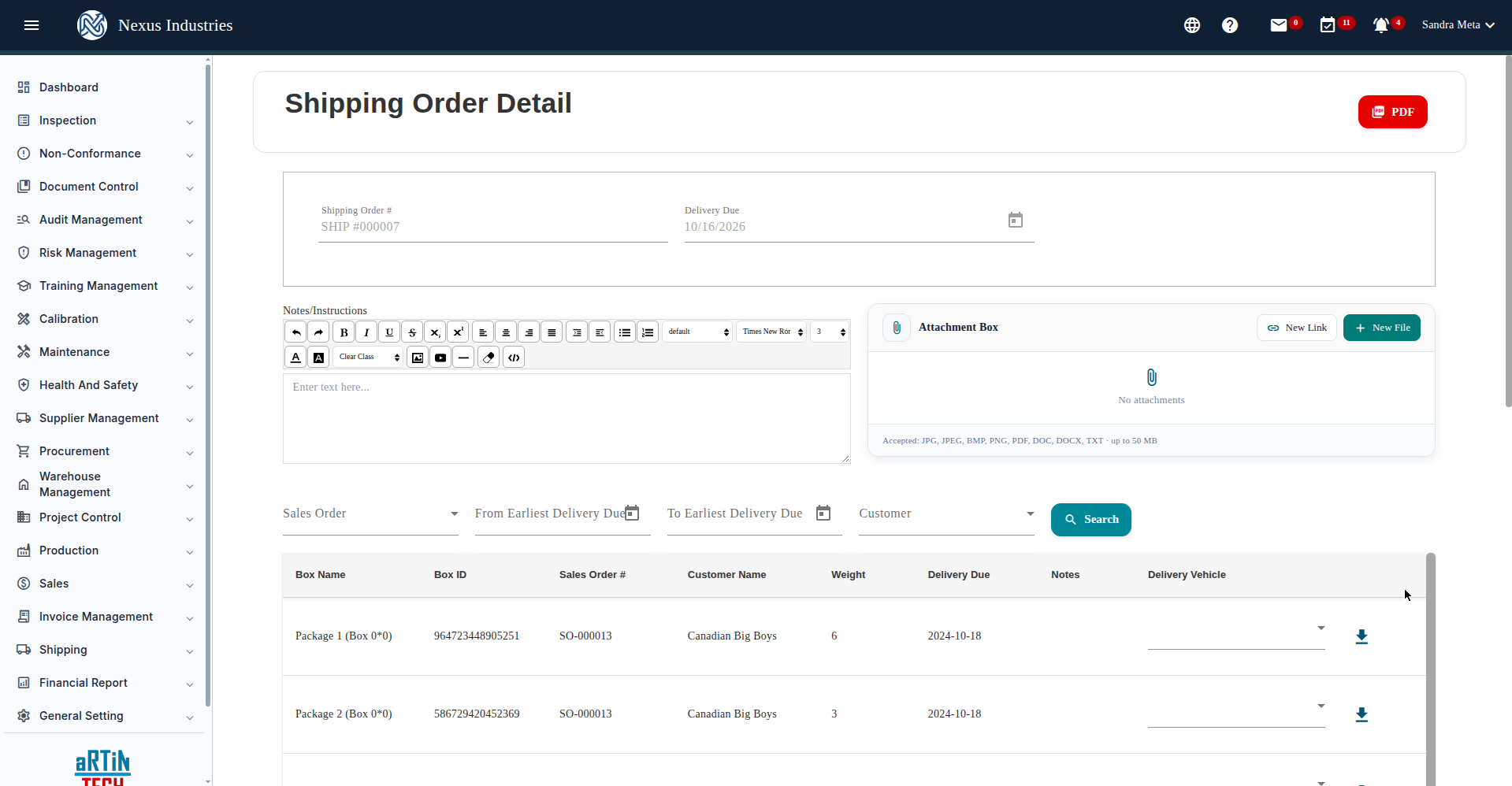
Demo orders: SHIP #000006 (SO-000013, Canadian Big Boys, 2 boxes, carrier SCANIA G), SHIP #000007 (SO #010014, Canadian Big Boys, 2 boxes, carrier Fedex, delivery due 2026-10-16), and SHIP #000007 (SO #000022, AtlasLogistics, 1 box 851KG, carrier NEW VEHICLE, delivery due 2026-10-23).
6. New shipping order form #
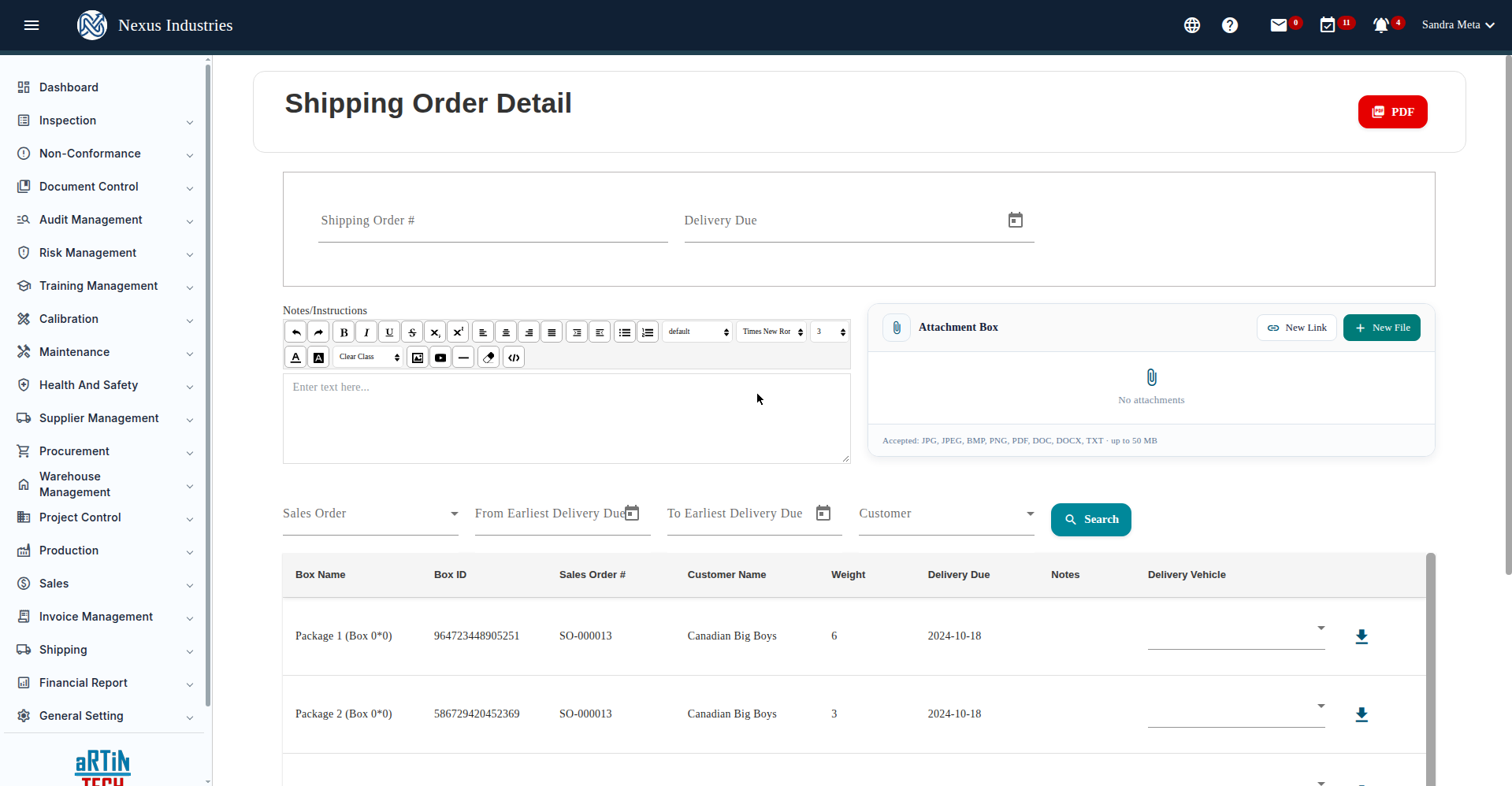
The New shipping order form: Shipping Order # and Delivery Due at the top, a Notes/Instructions rich-text editor, the Attachment Box (up to 50 MB), then the packages table with Box ID, Sales Order #, Customer Name, Weight, Delivery Due, and Delivery Vehicle selection per row.
7. The full flow at a glance #
Fulfill (sales order fulfillment list) → Pick (picking orders with batch allocation) → Pack (packing orders into boxes) → Ship (loading, tracking, submit) → Deliver (loading sheets, delivery orders).


