
Artintech ERP’s Supplier Management module keeps your supply base under control: a supplier register, a certification list with expiry alerts, and weighted performance ratings with scheduled assessments. This tutorial walks through all three.
1. Open the Supplier Management module #
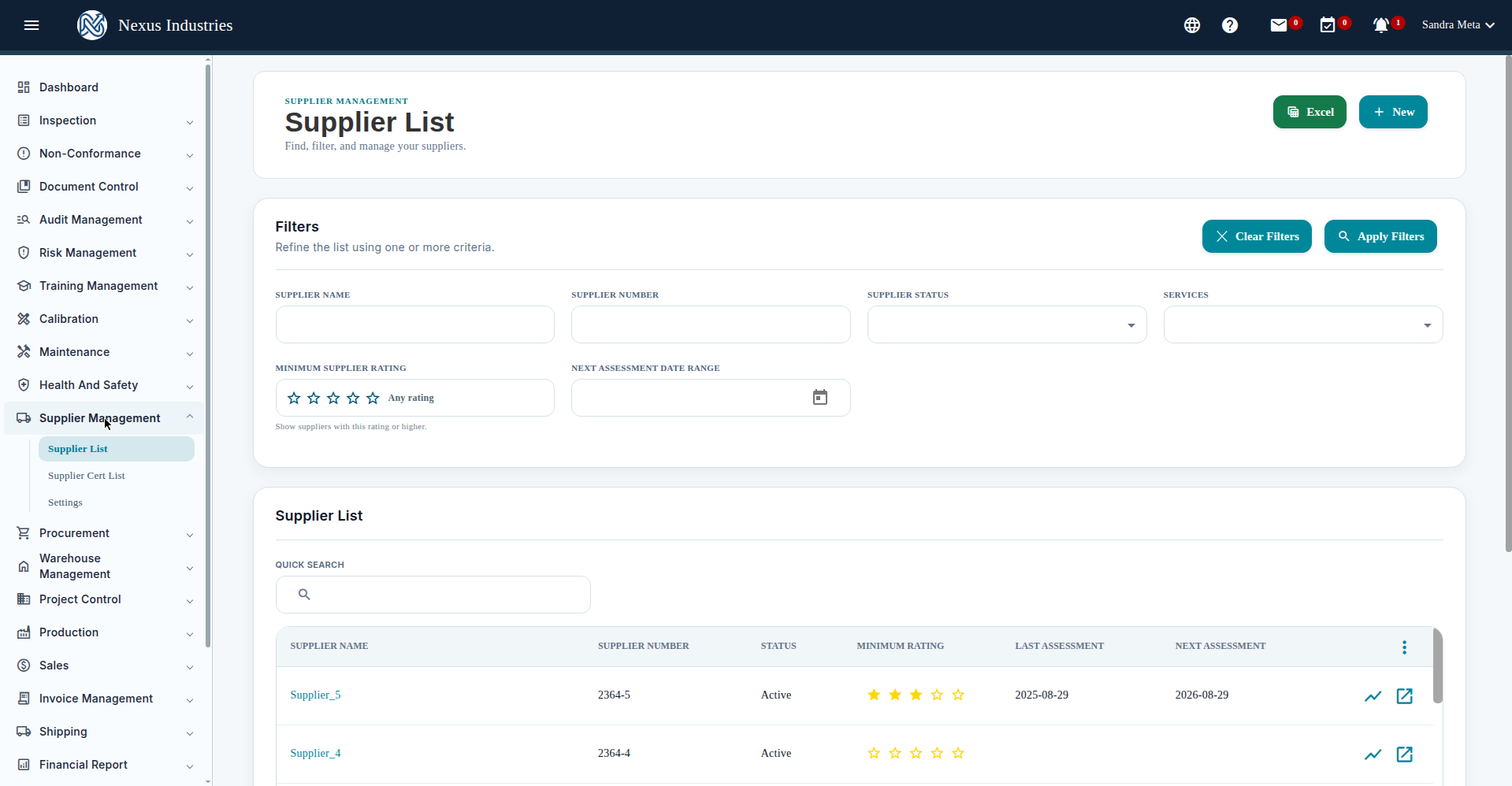
From the left sidebar, open Supplier Management. Its sections: Supplier List, Supplier Cert List, and Settings.
2. Onboard a supplier #
- Go to Supplier List and click New.
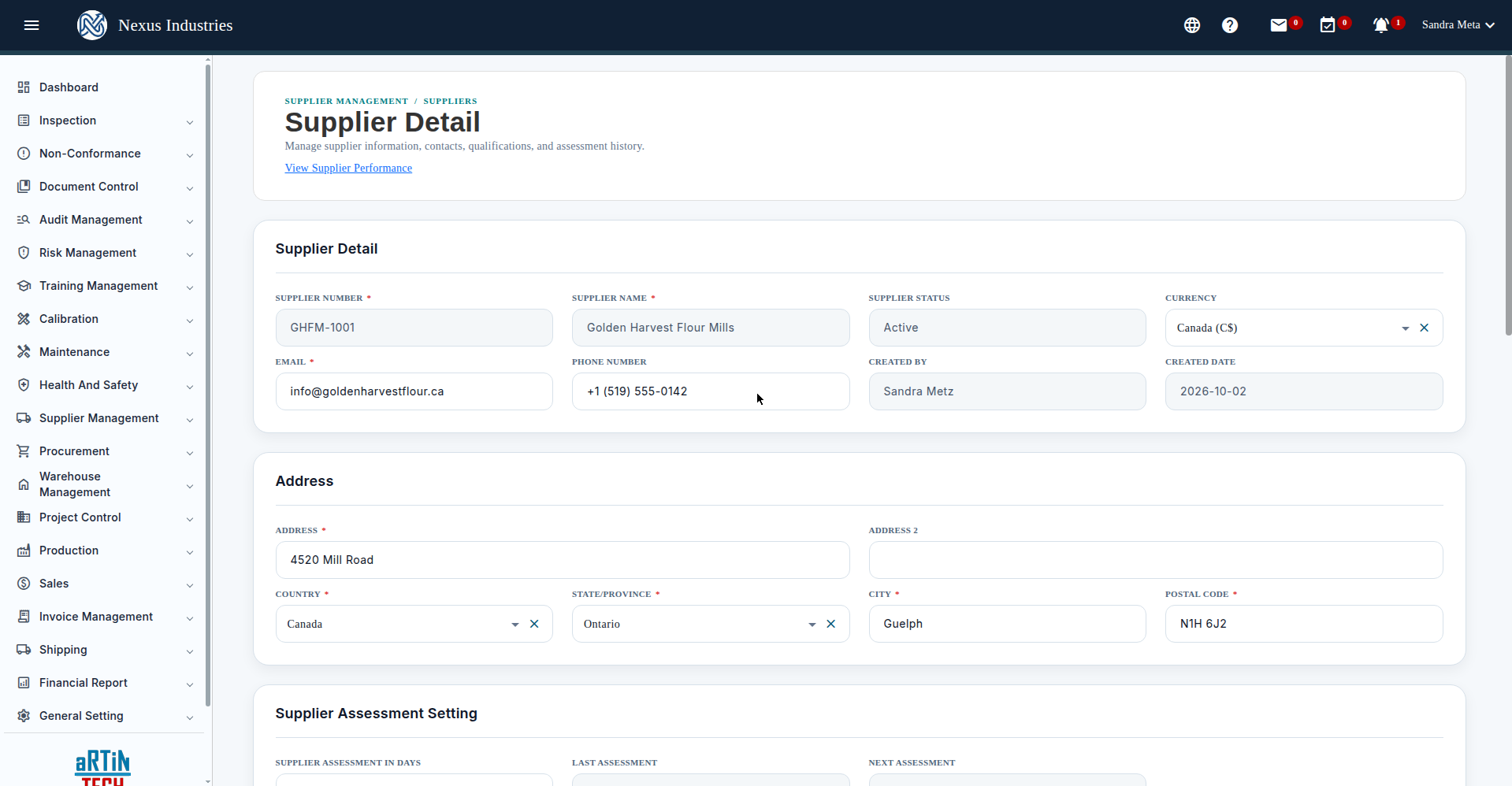
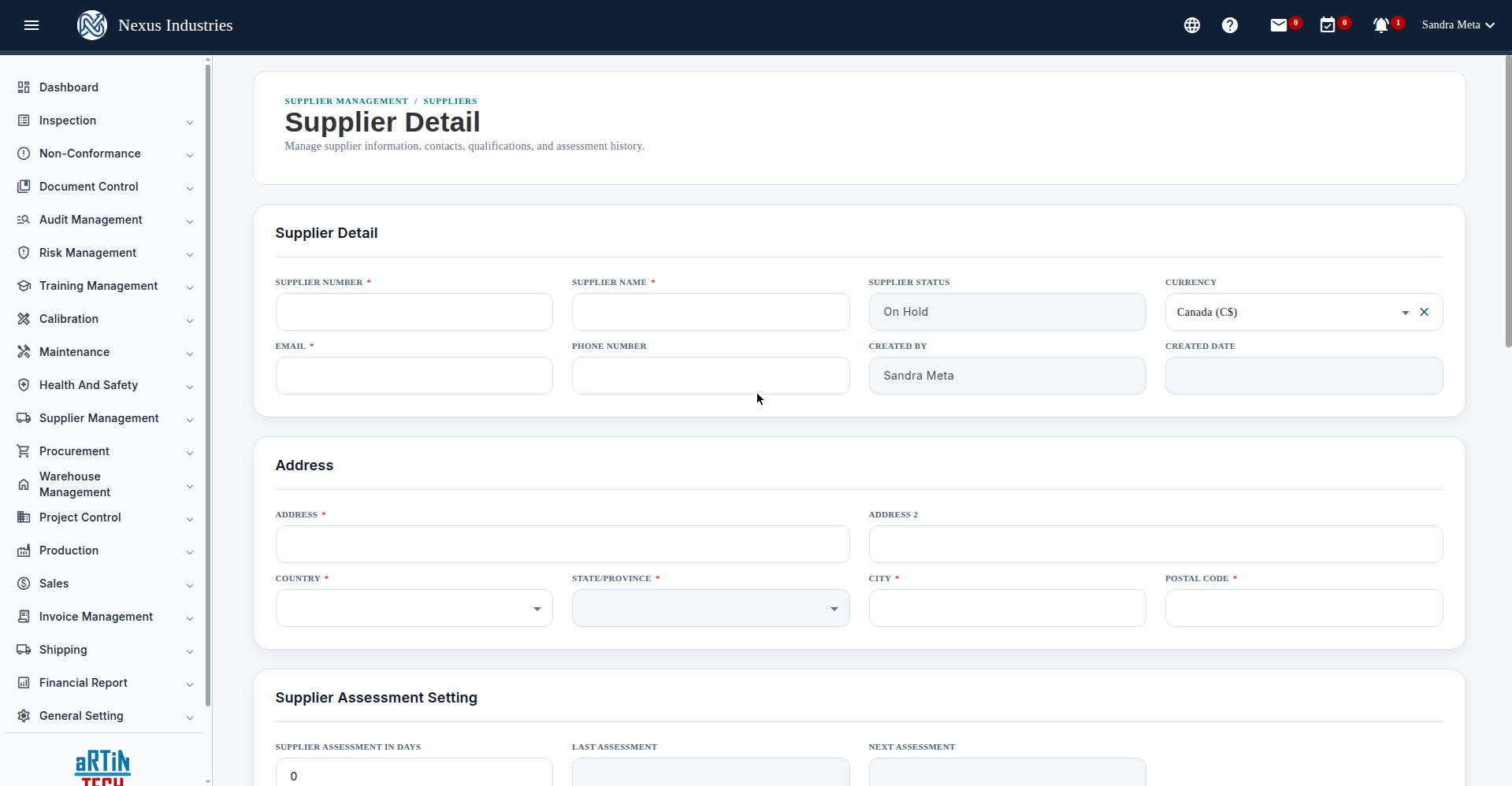
- Fill in the required fields: Supplier Number and Supplier Name, Email, and the full Address (country, state/province, city, postal code).
- Below the main form, add Contact People, Services (e.g. Material Supply), Certifications (with expiry dates and the certificate PDF), and Supplier Attributes.
- Note: dialog-level saves only update the in-page draft — finish with the page-level Save so nothing is lost.
3. Track certifications #
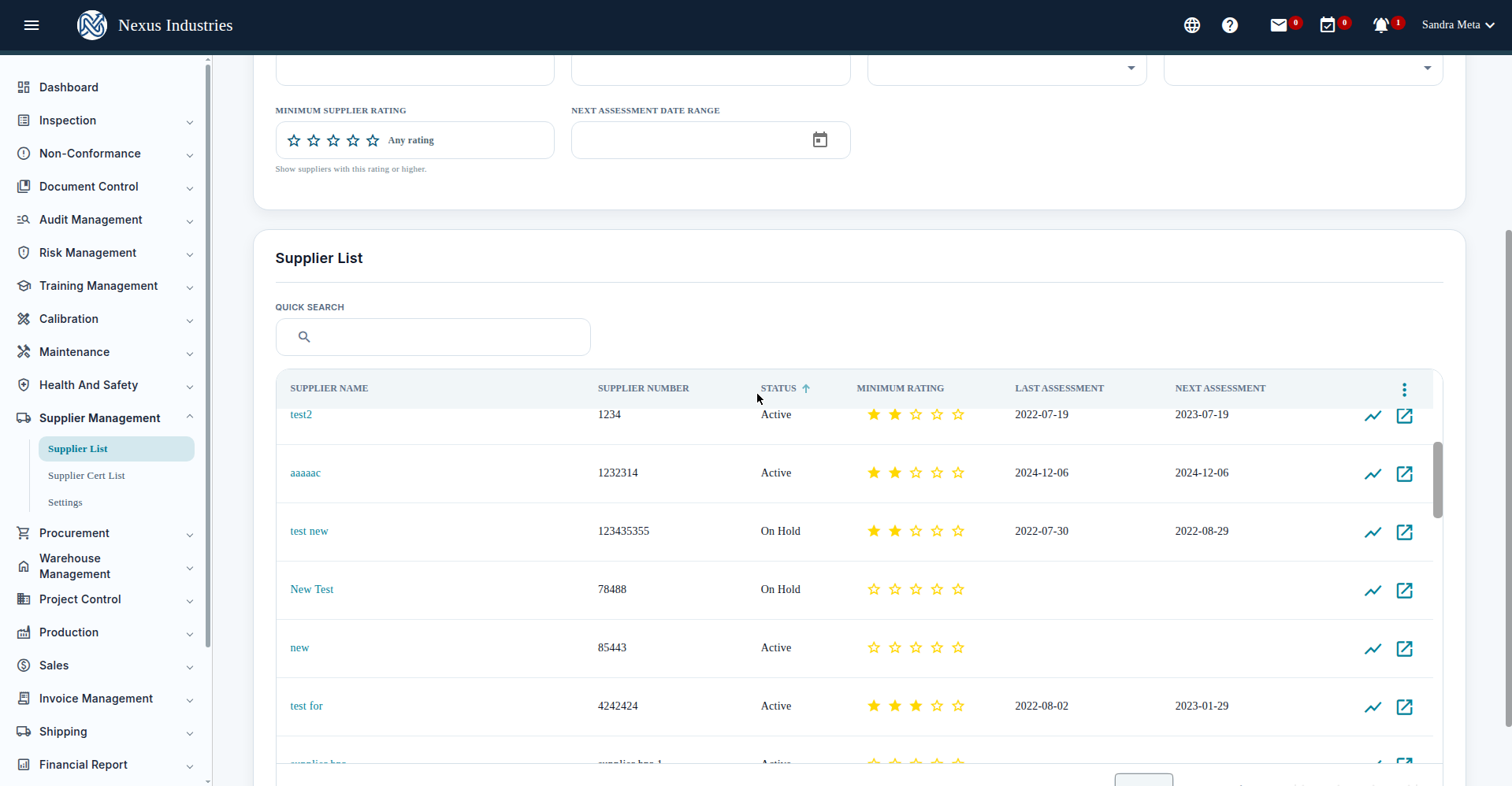
Go to Supplier Cert List to see every certification across suppliers with Expire Date and Valid/Expired alert pills — so nothing lapses unnoticed. Use the filters (supplier, cert name, expiry date range, certification status) to find what’s due.
4. Rate supplier performance #
- On the supplier detail page, open the Supplier Rating section and click New Assessment.
- Score each of the weighted parameters (e.g. Delivery, Quality, Customer Service, Packaging, Certification, Responsiveness, Sustainability, Warranty Claims) from 0 to 5 — the average weighted score is computed for you.
- Add a Justification, save, and the last/next assessment dates are auto-set from your assessment cycle (e.g. 365 days).
5. The full flow at a glance #
Onboard (register suppliers with contacts, services, and certifications) → Track (certification expiry alerts and status history) → Assess (weighted ratings on a schedule) → Improve (use “View Supplier Performance” to see the nonconformance picture per supplier).


