
Artintech ERP’s Invoice Management module handles accounts receivable end to end: customer invoices, invoice payments, credit memos, and the settings behind them. This tutorial walks through the flow.
1. The Invoice Management module at a glance #
The module’s sub-pages:
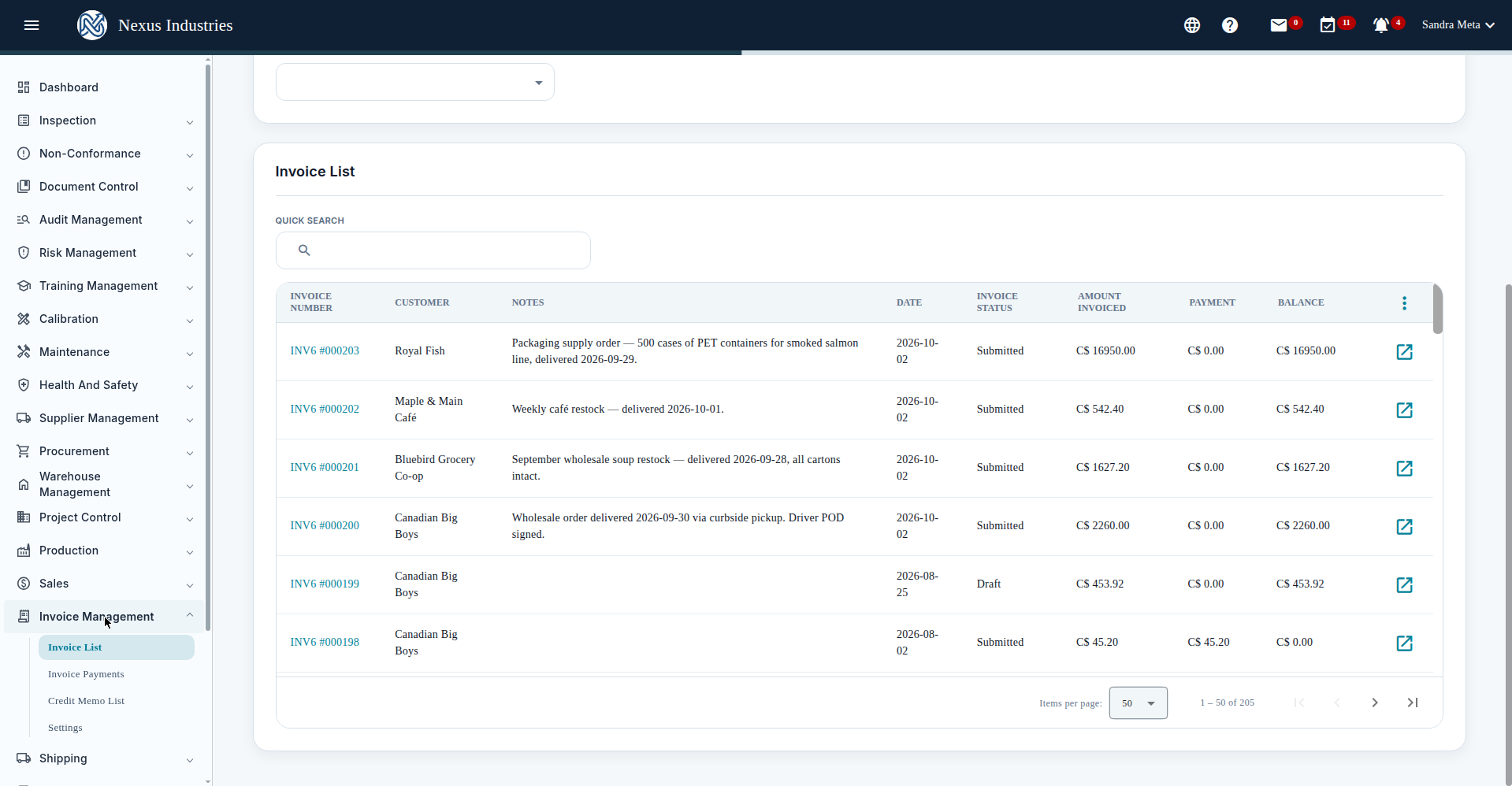
- Invoice List — customer invoices with filters (invoice number, customer, date range, invoice status, payment status), quick search, Excel export.
- Invoice Payments — payment receipts applied to invoices.
- Credit Memo List — credit memos with customer, status, application status, reason code, date range, and source invoice filters.
- Settings — default invoice notes, payment terms, and credit memo reason codes.
2. Create an invoice #
- Go to Invoice List and click New.
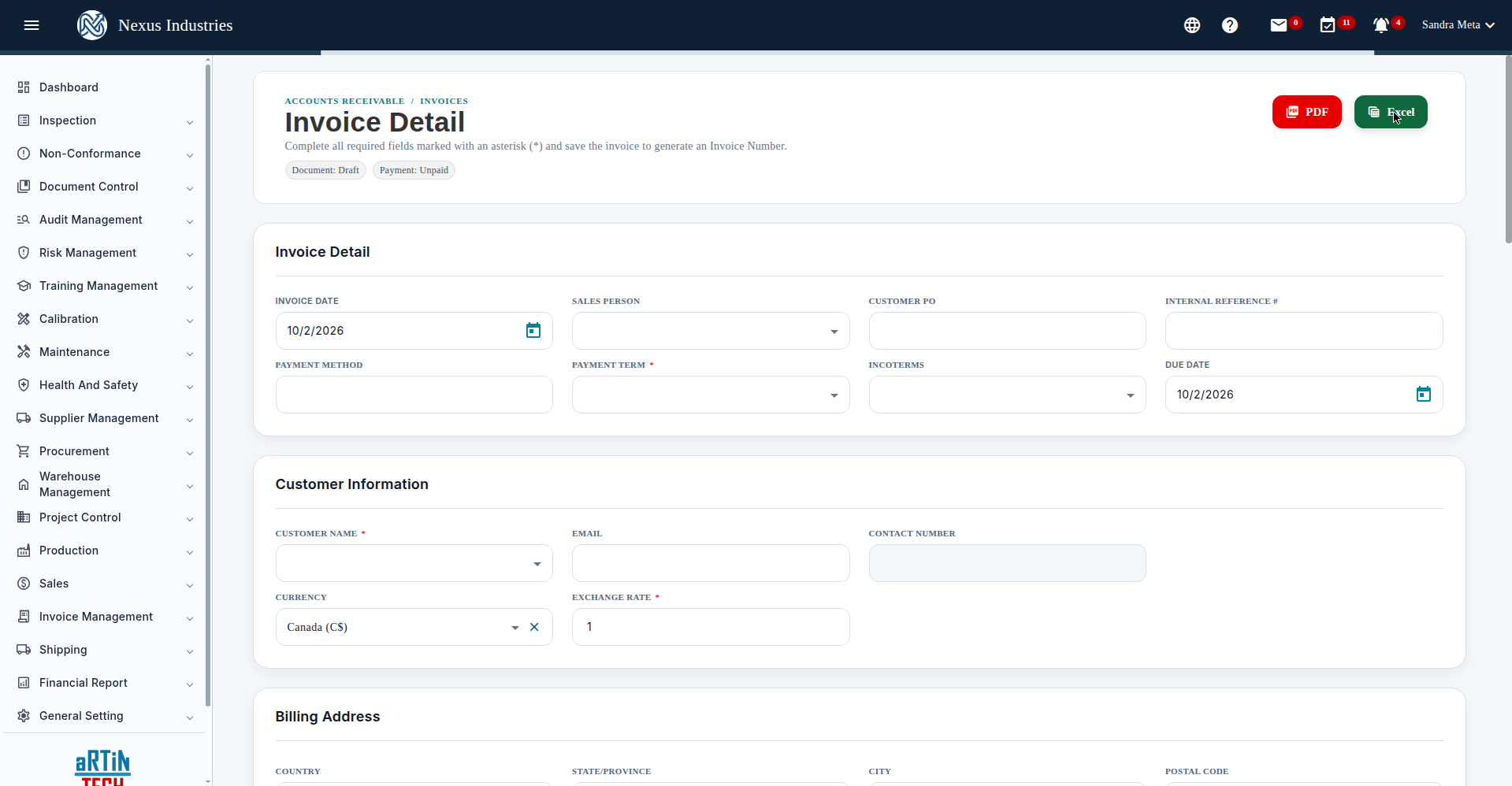
- Fill in the header: invoice date, sales person, customer PO, internal reference #, payment method, payment term (required), Incoterms, and due date.
- Add the customer: customer name (required), currency, exchange rate, billing address, shipping detail.
- Add invoice items with quantity, unit price, discount %, and tax — the picker auto-fills UOM and rate.
- Review the summary (subtotal, discounts, tax, total after tax) and Save — the invoice gets its INV6 number. Then Submit to finalize it.
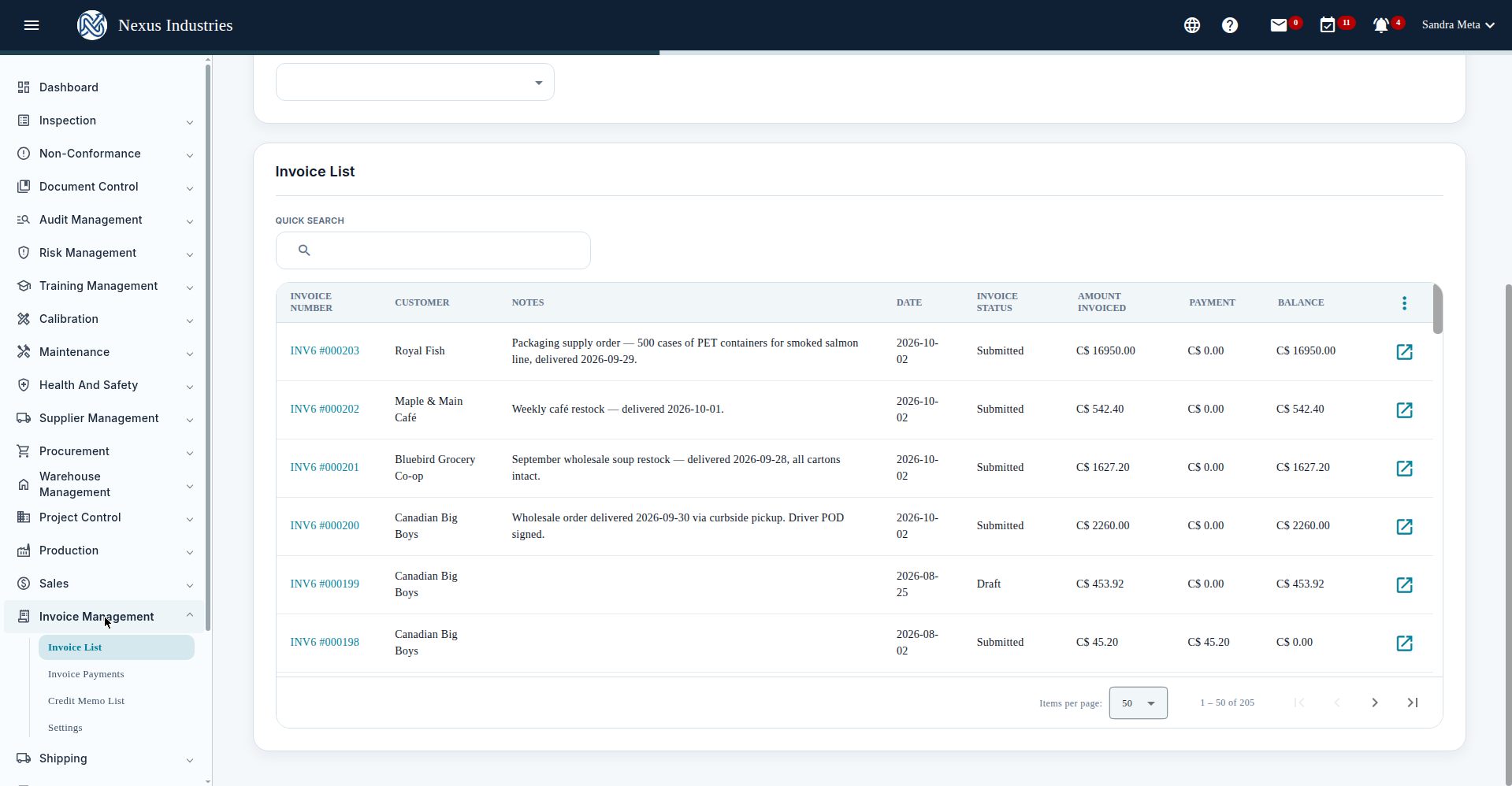
Example demo invoices: INV6 #000200 (Canadian Big Boys, Chocolate Chip Cookies, C$2,260.00), INV6 #000201 (Bluebird Grocery Co-op, soups and paste, C$1,627.20), INV6 #000202 (Maple & Main Café, C$542.40), INV6 #000203 (Royal Fish, packaging, C$16,950.00) — all Submitted, Unpaid, ON HST 13%, Net 30.
3. Read the invoice detail #
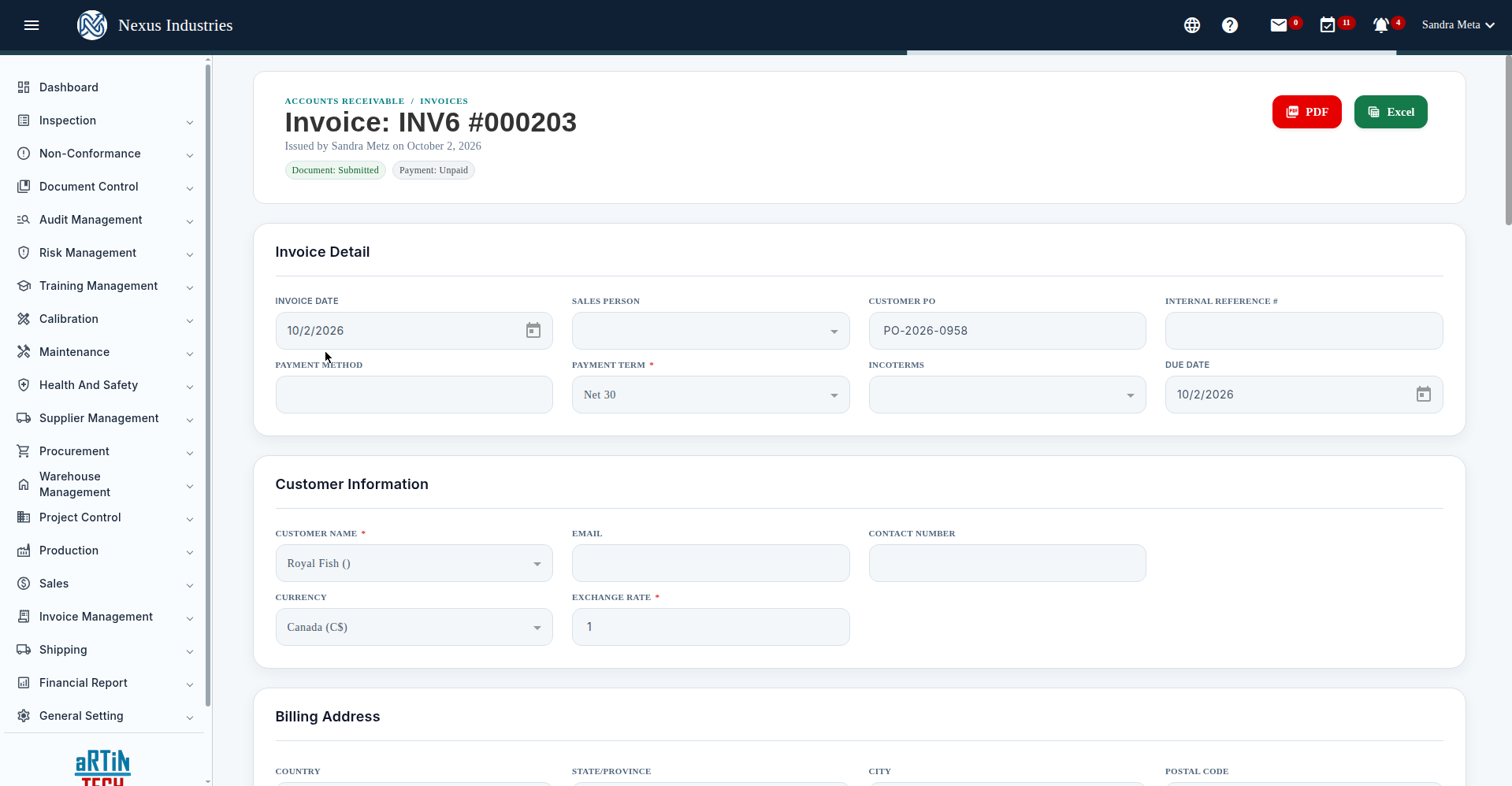
The invoice detail carries: header and customer sections, notes (internal / on PDF / footnote), the Attachment Box, Related Transactions (auto-linked to source sales orders), the Invoice Items grid (add/edit/delete/reorder), Payments & Credits, Created Credit Memos, and the Summary with extra discounts, taxes, received payments, credit memo applied, total settled, and balance due.
Actions: Exit, Void, Save, Submit, Record Payment, Apply Credit Memo, Create Credit Memo, Duplicate, Send to Customer, PDF, Excel.
4. Record payments and issue credit memos #
- Invoice Payments: go to the payment list, click New, pick the customer, and add payment items against invoices. The invoice’s balance and payment status update automatically.
- Credit Memos: go to the Credit Memo List, click New, choose a reason code (GOODWILL, OVERBILLING, PRICE_ADJ, RETURN, TAX_CORRECTION…), and add line items. Apply the credit memo to an invoice to settle part or all of the balance.
5. Track the money #
The Invoice List shows every invoice with its status, amount invoiced, payments received, and balance — so nothing slips through. Each invoice tracks document status (Draft / Submitted), payment status (Unpaid / Partially Paid / Paid), and the full settlement trail.
6. The full flow at a glance #
Invoice (create with items, taxes, totals → Save → Submit) → Pay (record payments against invoices) → Adjust (credit memos for returns, overbilling, goodwill) → Track (statuses, balances, settlement trail).


