
Artintech ERP’s Procurement module covers the full purchasing cycle: reorder alerts, quotes and quote comparison, purchase orders, supplier invoices and settlements, plus an itemized procurement report. This tutorial walks through the flow.
1. Open the Procurement module #
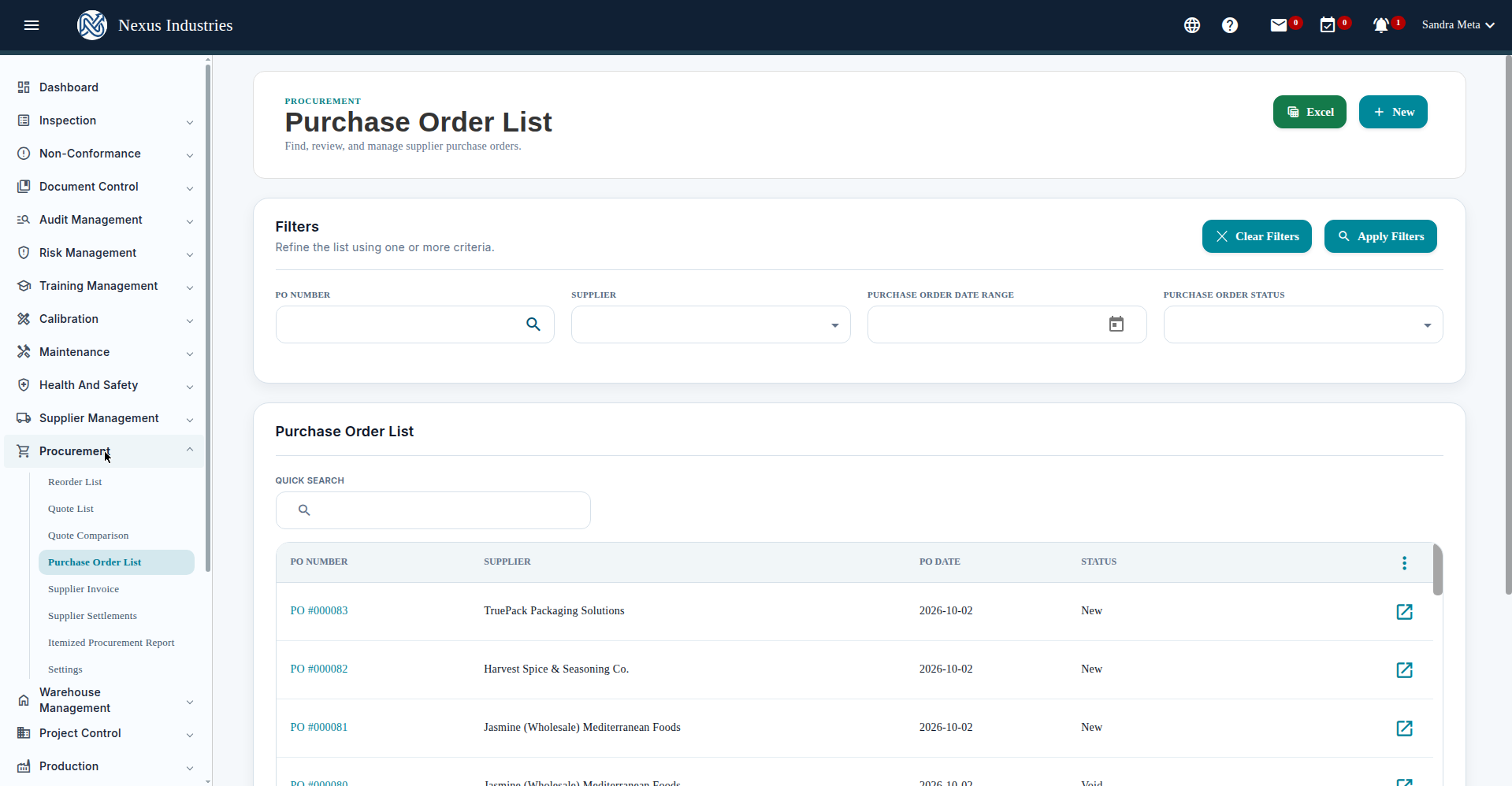
From the left sidebar, open Procurement. Its sections: Reorder List, Quote List, Quote Comparison, Purchase Order List, Supplier Invoice, Supplier Settlements, Itemized Procurement Report, and Settings.
2. Create POs from reorder alerts #
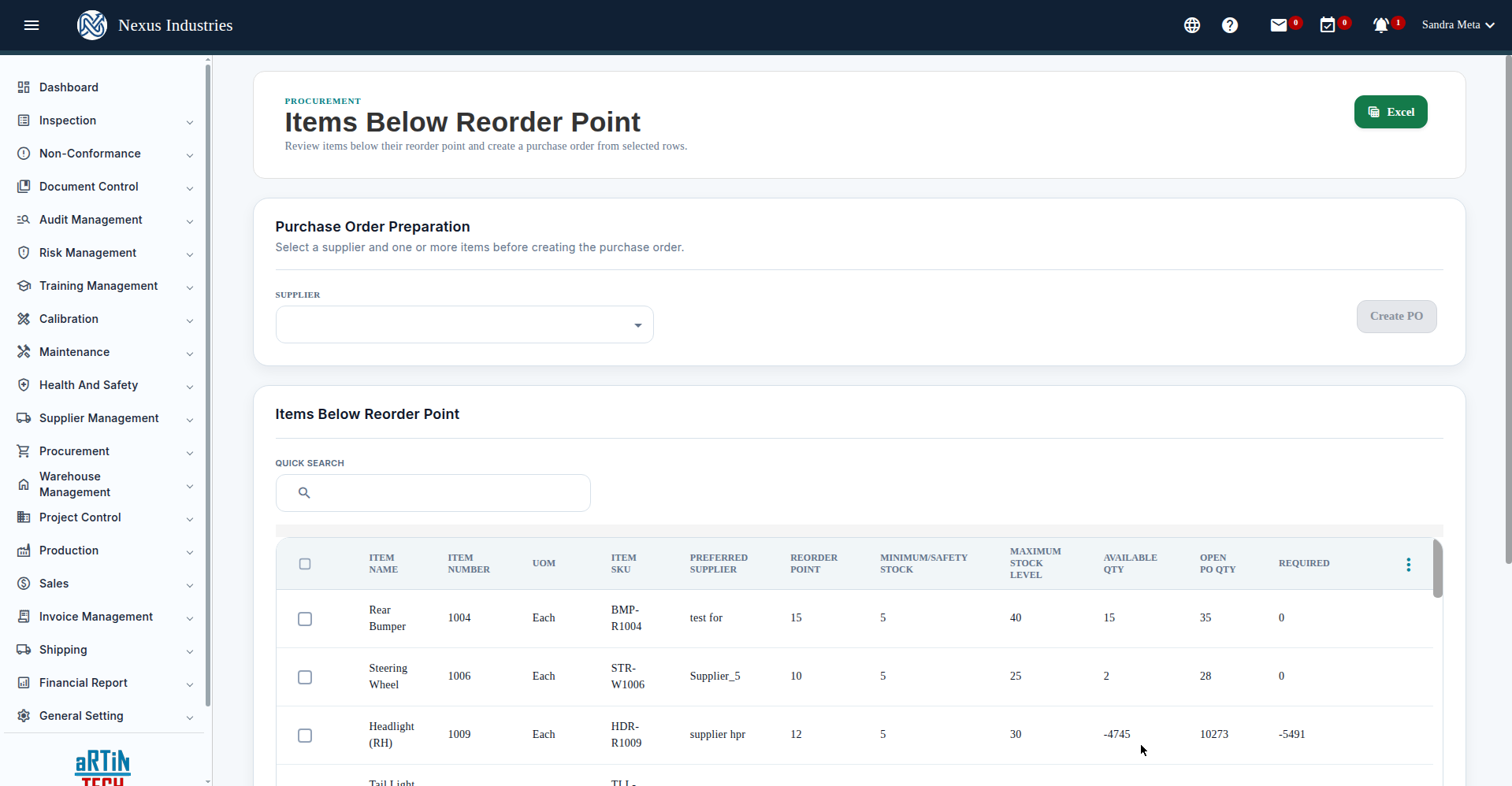
The Reorder List shows items below their reorder point with available, open-PO, and required quantities. Select a supplier, check the items you need, and click Create PO — the purchase order is generated with those line items.
3. Compare quotes, then buy #
For larger or strategic buys, collect Quotes (supplier, incoterms, payment terms, line items) and use Quote Comparison to compare unit prices across suppliers side by side before awarding the business.
The Purchase Order List shows every PO with filters (PO number, supplier, date range, status: New / Pending / Partially Fulfilled / Closed / Void), quick search, Excel export, and Customize Columns.
4. Track the order through its lifecycle #
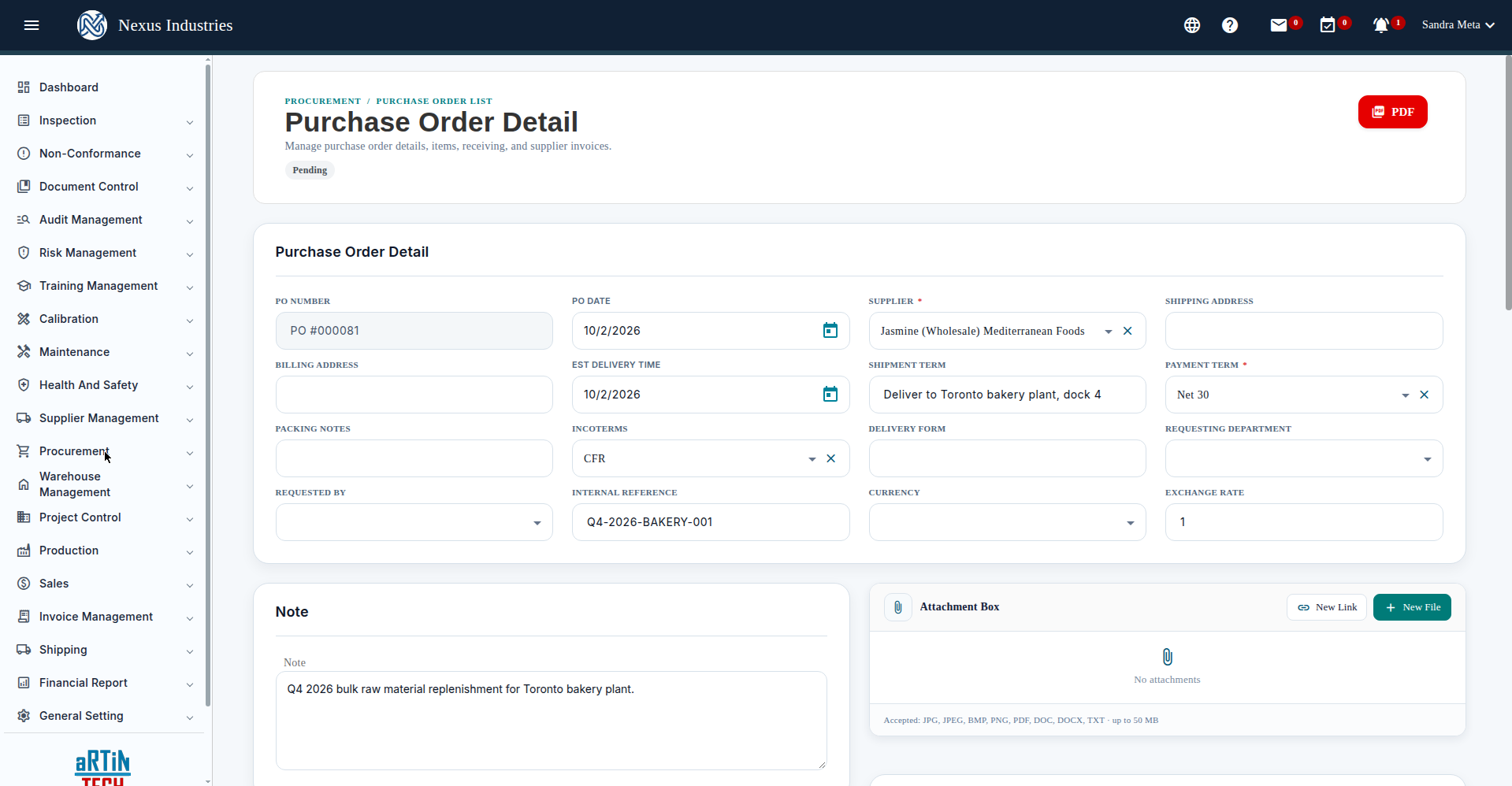
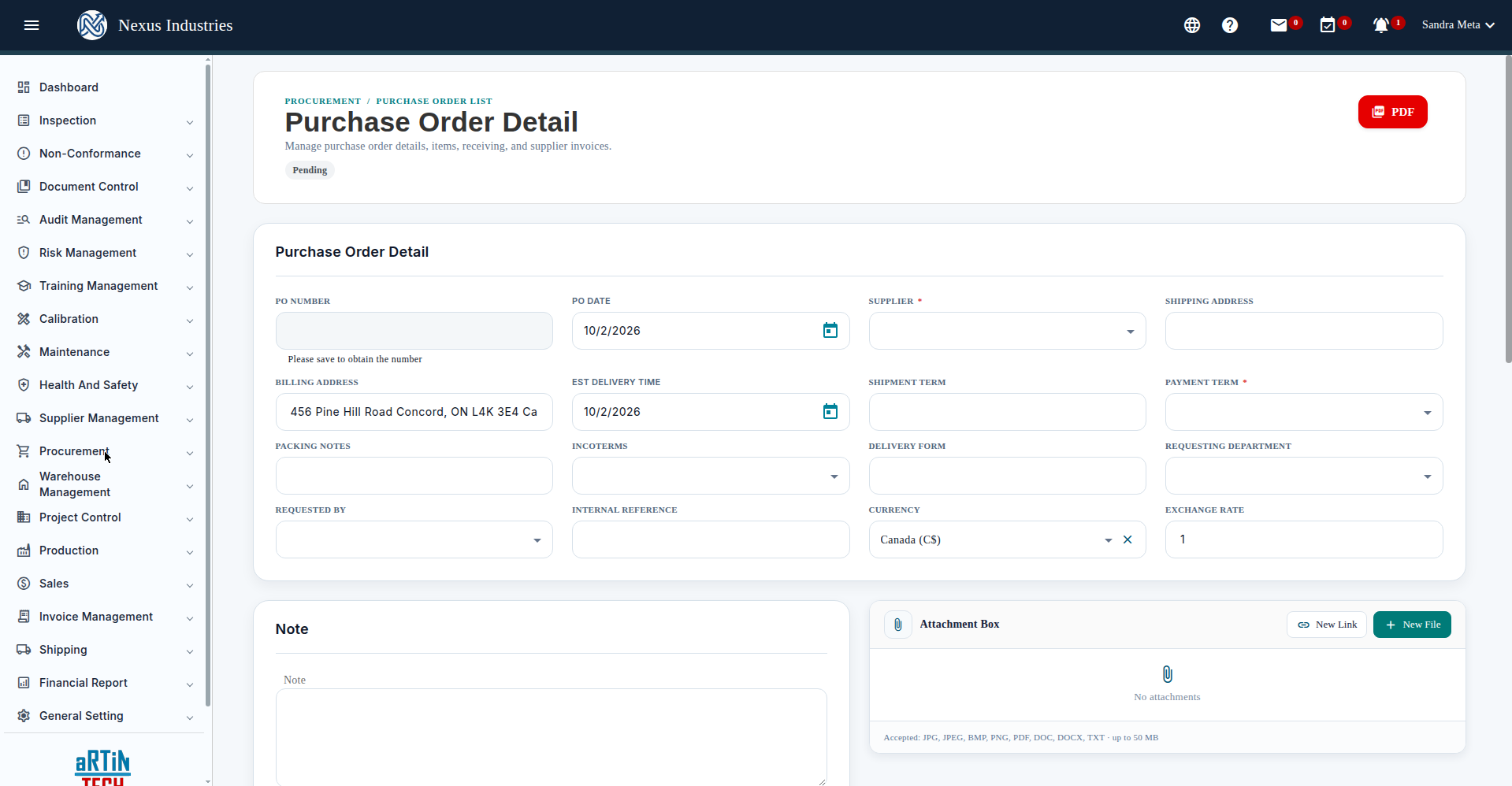
Open a purchase order to manage its full lifecycle: the New → Pending → Partially Fulfilled → Closed status flow, Void when needed, Create Receiving when goods arrive, Create Supplier Invoice when the bill comes, and PDF export for sending to the supplier.
5. Match invoices and settle #
Supplier Invoice records the bill against the PO (Draft → Submit), with invoice totals and balance due. Supplier Settlements track payments — total payments, applied, and unapplied balances. The Itemized Procurement Report gives you the item-level fulfillment picture.
6. The full flow at a glance #
Reorder (alerts from below-reorder-point items) → Quote (collect and compare supplier quotes) → Order (POs with a clear status lifecycle) → Receive (goods receipt) → Invoice & Settle (match bills, pay suppliers, track balances).


