
Artintech ERP’s Audit Management module takes an audit from plan to closure: define the audit with its scope and checklist, execute it through audit reports, and close it with an approval. This tutorial walks you through each step using realistic food-manufacturing examples.
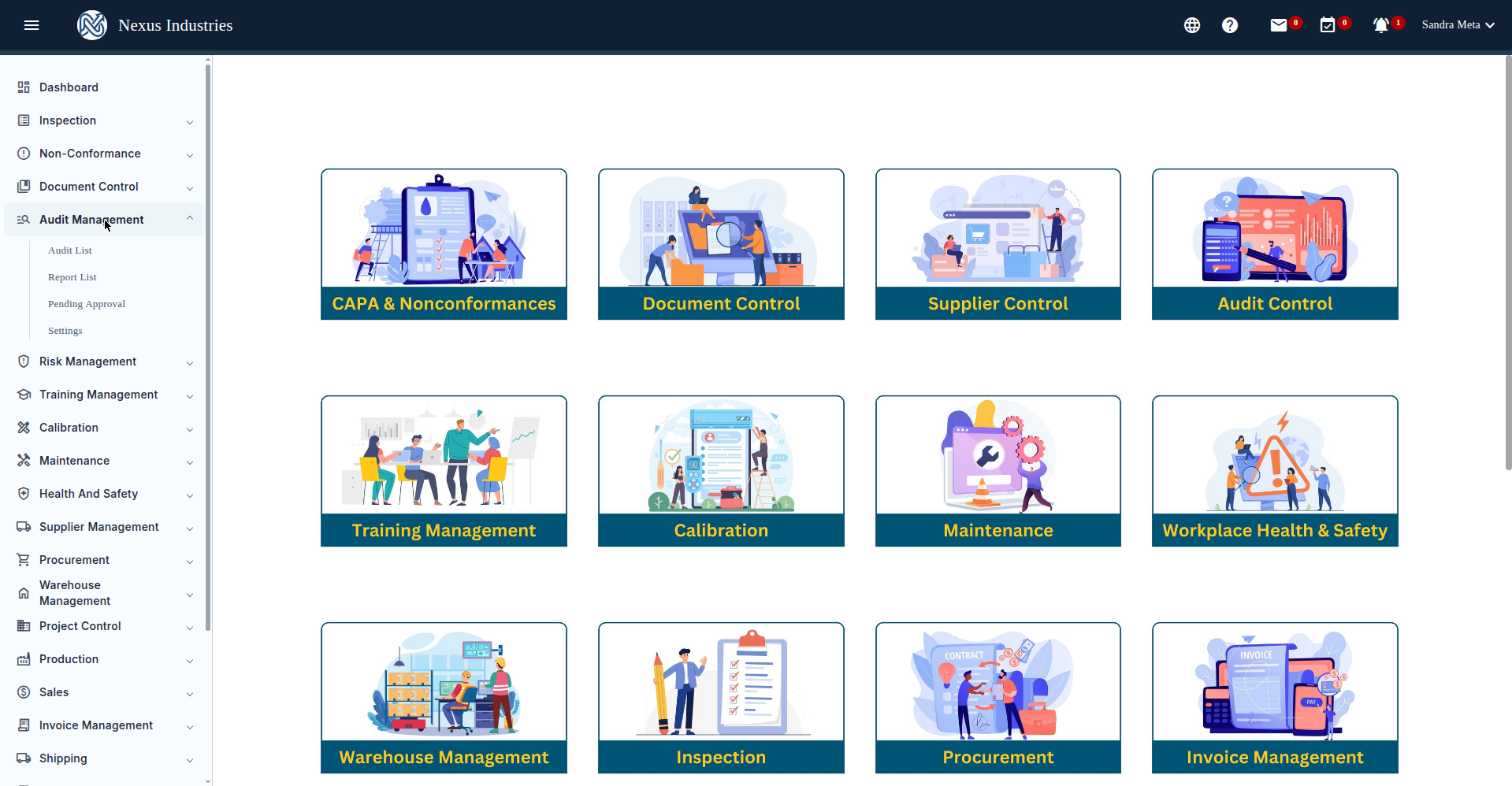
1. Open the Audit Management module #
From the left sidebar, open Audit Management. You’ll see its sections: Audit List (scheduled audits), Report List (audit reports), Pending Approval (reports awaiting approval), and Settings.
2. Plan an audit #
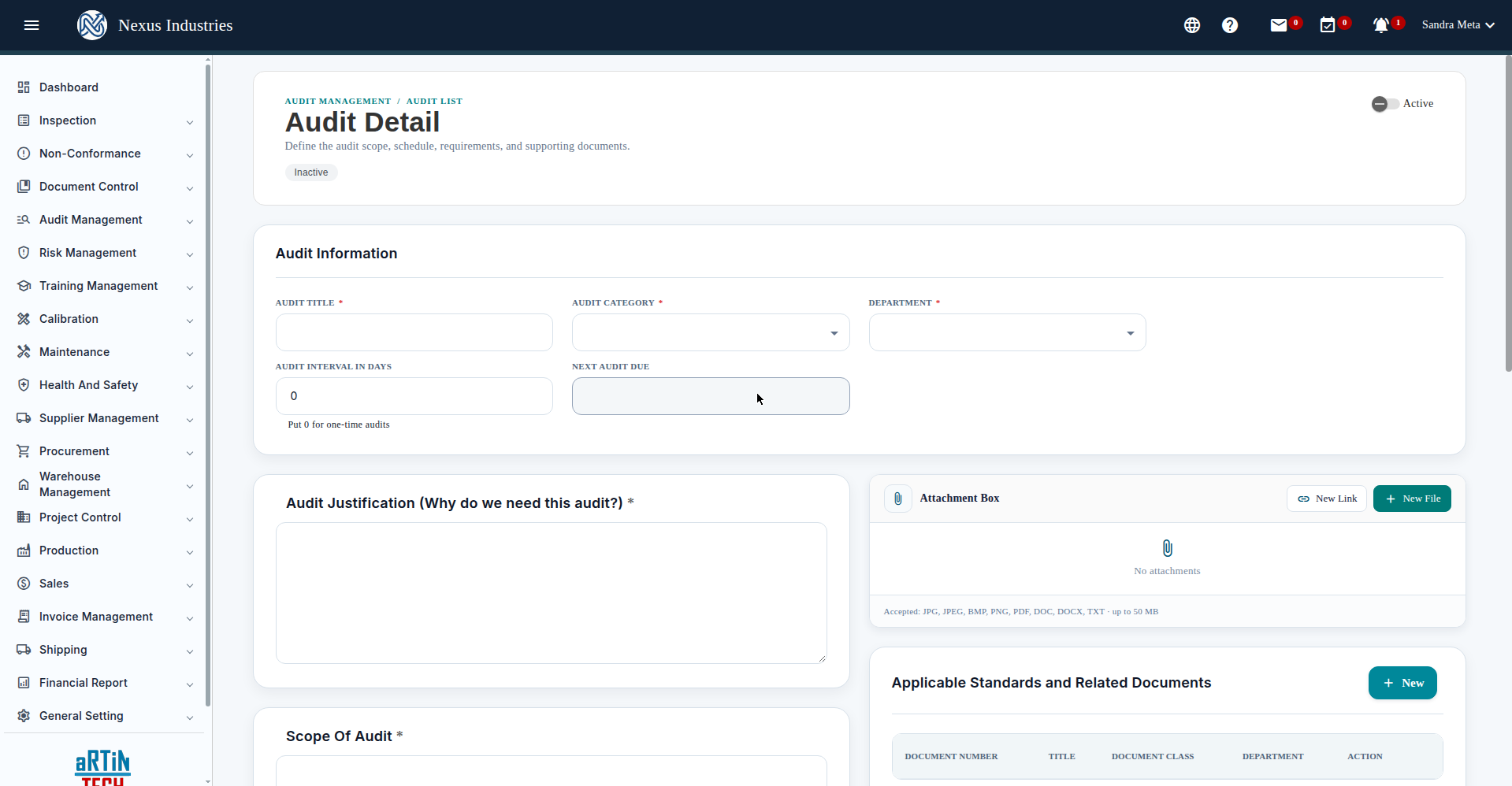
- Go to Audit Management → Audit List and click New.
- Fill in the form: Audit Title (required) — e.g. “HACCP Verification Audit — Ready-to-Eat Packaging Line”; Audit Category (required) — Internal, Supplier, Third Party, Customer, Inventory, or Cyber Security; Department (required); Audit Interval in Days — e.g. 365 for an annual audit (0 for a one-time audit). The Next Audit Due date is computed automatically from the interval; Audit Justification (required) — why this audit is needed; Scope of Audit (required); Attachment Box — link or upload supporting files (up to 50 MB); Applicable Standards and Related Documents — attach the standards and controlled documents the audit checks against.
- Save. Audits can be toggled Active/Inactive.
3. Manage the audit schedule #
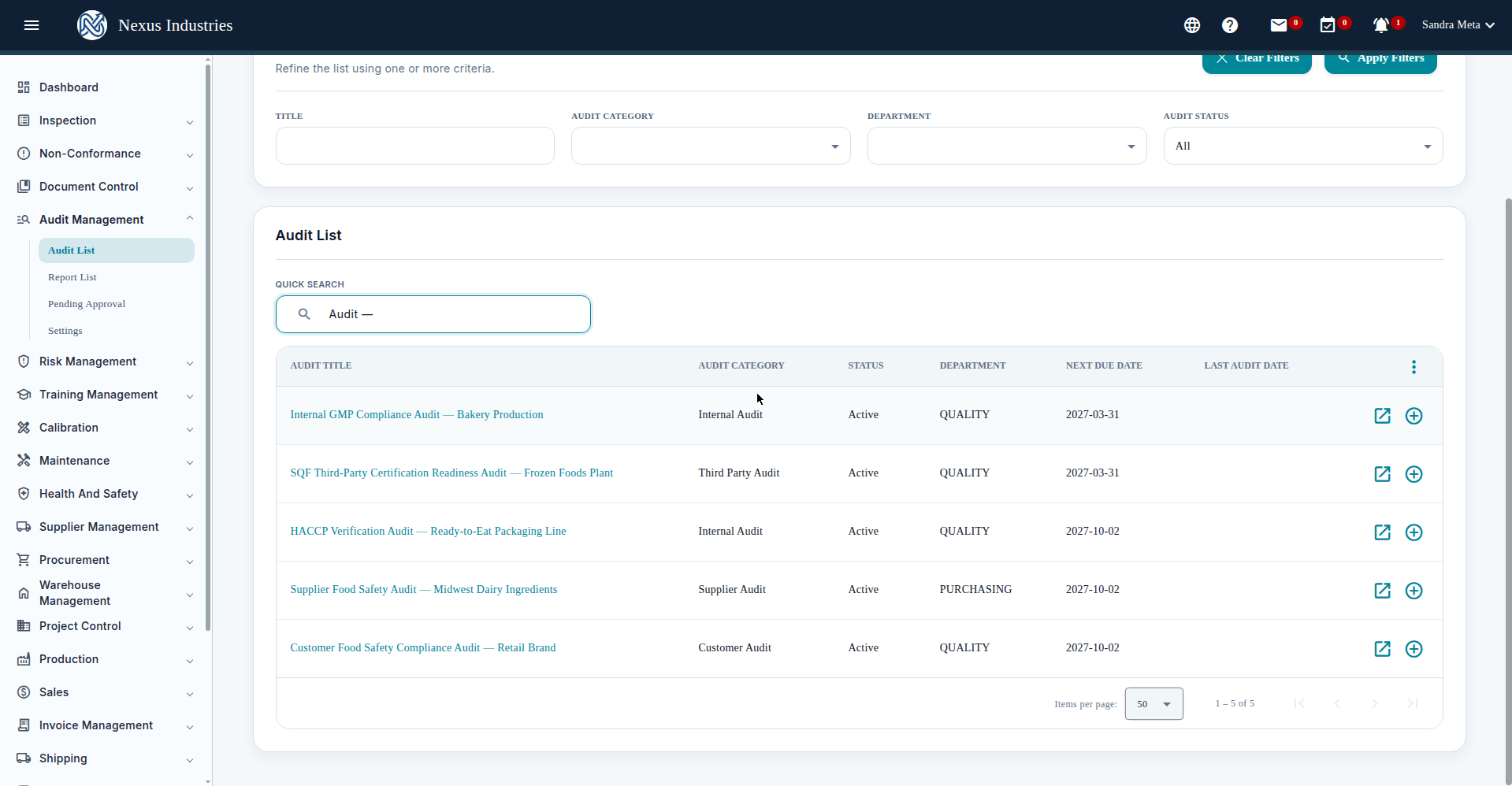
The Audit List shows every scheduled audit with its category, status, department, and next due date — overdue dates render in red so nothing slips. Filters by title, category, department, and status, plus quick search, column sorting, and Excel export keep the schedule under control.
4. Build the audit checklist #
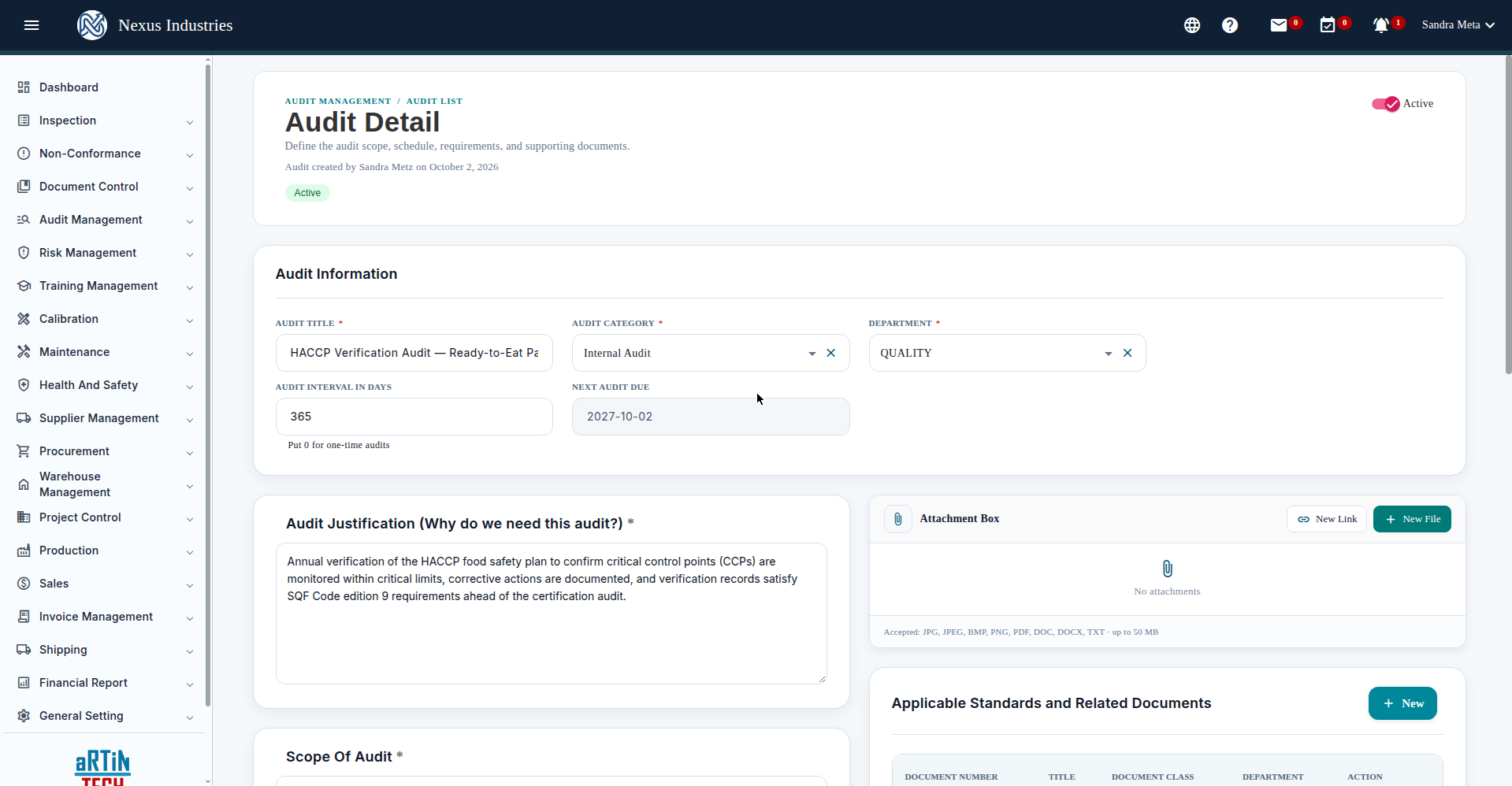
Open an audit’s detail view to define its requirements: the Audit Checklist/Questionnaire holds requirements (e.g. “SQF Code 9.2”) with their questions/checkpoints, which you add, edit, expand, or delete. The detail also shows the audit information, justification, scope, attachments, related documents, and the Audit Report History.
5. Execute, review, and close #
The audit lifecycle runs: Plan (scope, schedule, checklist, documents) → Execute (click New Report on an active audit to start a report, saved as Draft) → Review (the report moves to Pending Approval, visible in the Pending Approval queue) → Close (the report is Approved). Reports live in the Report List with filters by report number, audit title, date range, phase, category, author, auditor, and approver.
Two tips: answering the exit prompt matters — the system asks to save changes even when you haven’t made any, so choose carefully. And remember to toggle new audits to Active, since they default to Inactive.


