Artintech ERP’s Sales module carries the customer sale from first quote to fulfilled order: estimates (proforma invoices), sales orders, and the customers and settings behind them. This tutorial walks through the flow.
1. The Sales module at a glance #
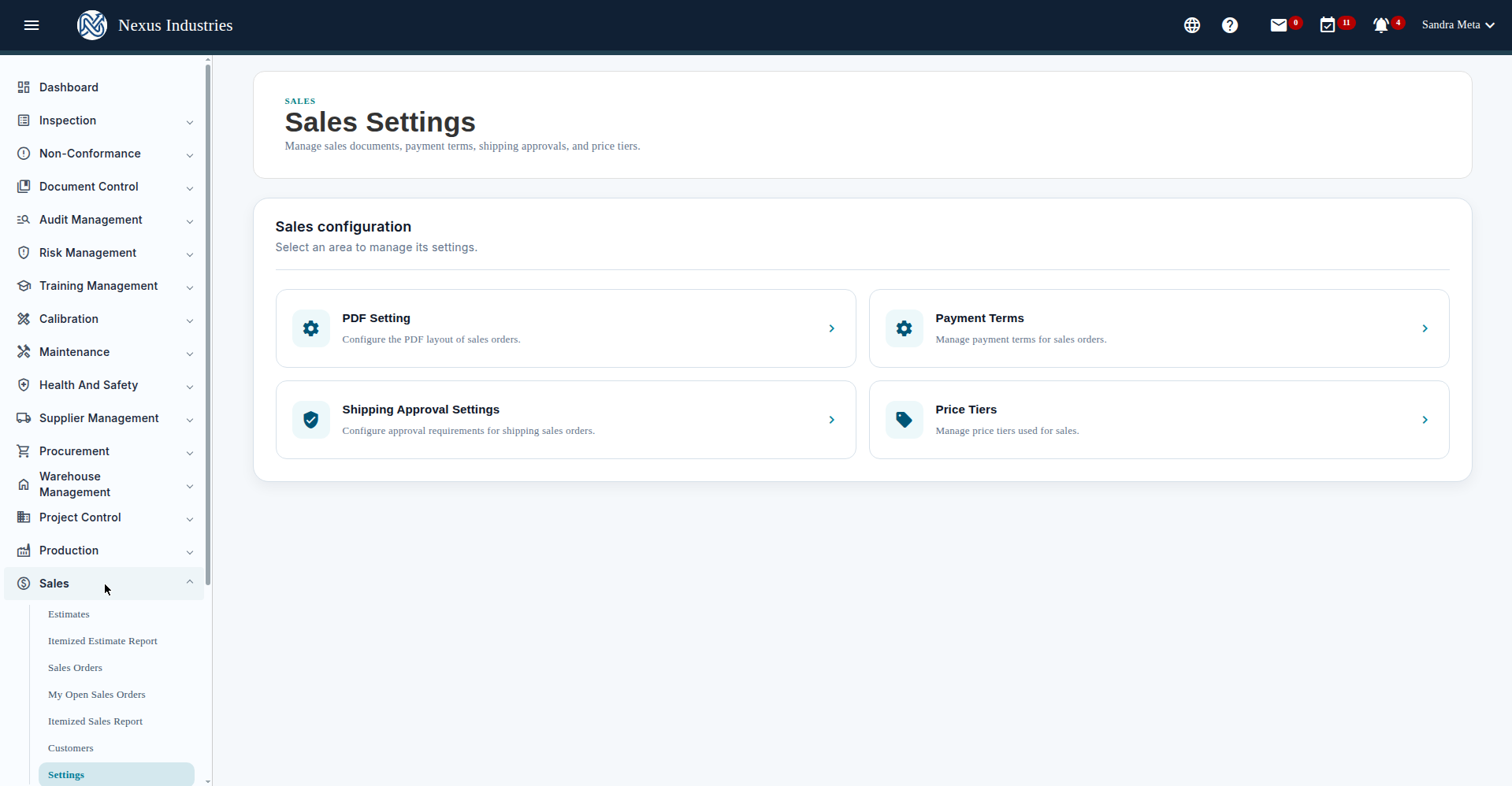
The module’s sub-pages:
- Estimates — quotations (proforma invoices) with PI-###### numbering.
- Itemized Estimate Report — line-level estimate lines for analysis.
- Sales Orders — the SO # list.
- My Open Sales Orders — orders assigned to you.
- Itemized Sales Report — generate line-level sales reports.
- Customers — the shared customer master (General Settings).
- Settings — PDF footnotes, payment terms, shipping approval, and price tiers.
2. Add and manage customers #
Before selling, go to Customers (shared with General Settings) and add the customer: name (required), contacts, address, payment terms. Demo customers: Maple & Main Café (Toronto) and Bluebird Grocery Co-op (Mississauga).
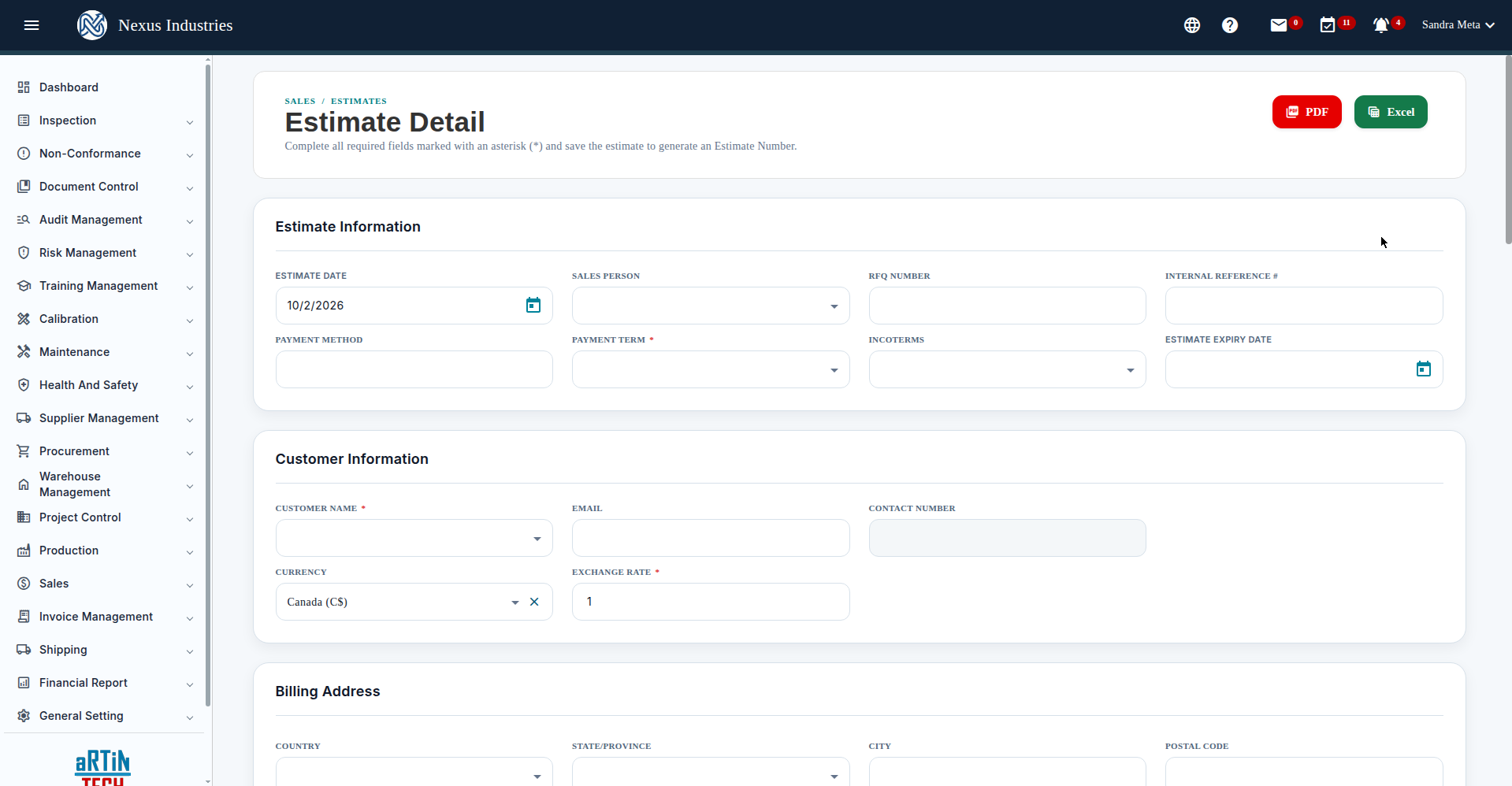
3. Create an estimate #
- Go to Estimates and click New.
- Fill in required fields: Payment Term, Customer Name, estimate date, expiry date, currency.
- Add the customer first, then add items with quantity, unit price, discount %, and tax.
- Save — the estimate gets its PI number.
Example: PI-202636 for Maple & Main Café — 100 Chocolate Chip Cookies at C$2.25, ON HST 13%, total C$254.25.
4. Convert an estimate to a sales order #
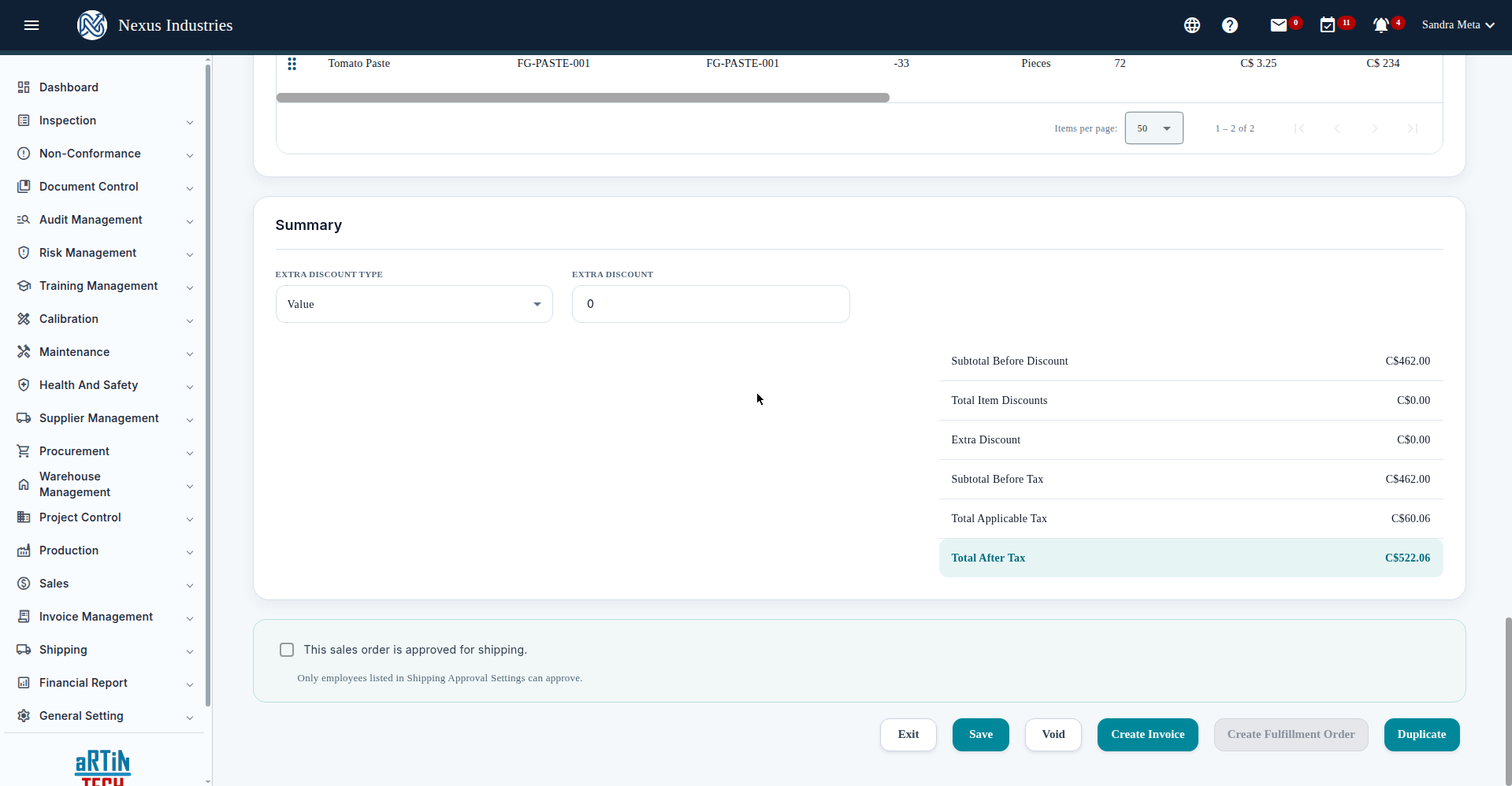
On the estimate, click Create Sales Order. The new sales order carries the items over and links back to the estimate under Related Transactions. Example: PI-202637 for Bluebird Grocery Co-op (Canned Tomato Soup + Tomato Paste, C$522.06) became SO #25010107.
5. Track order status #
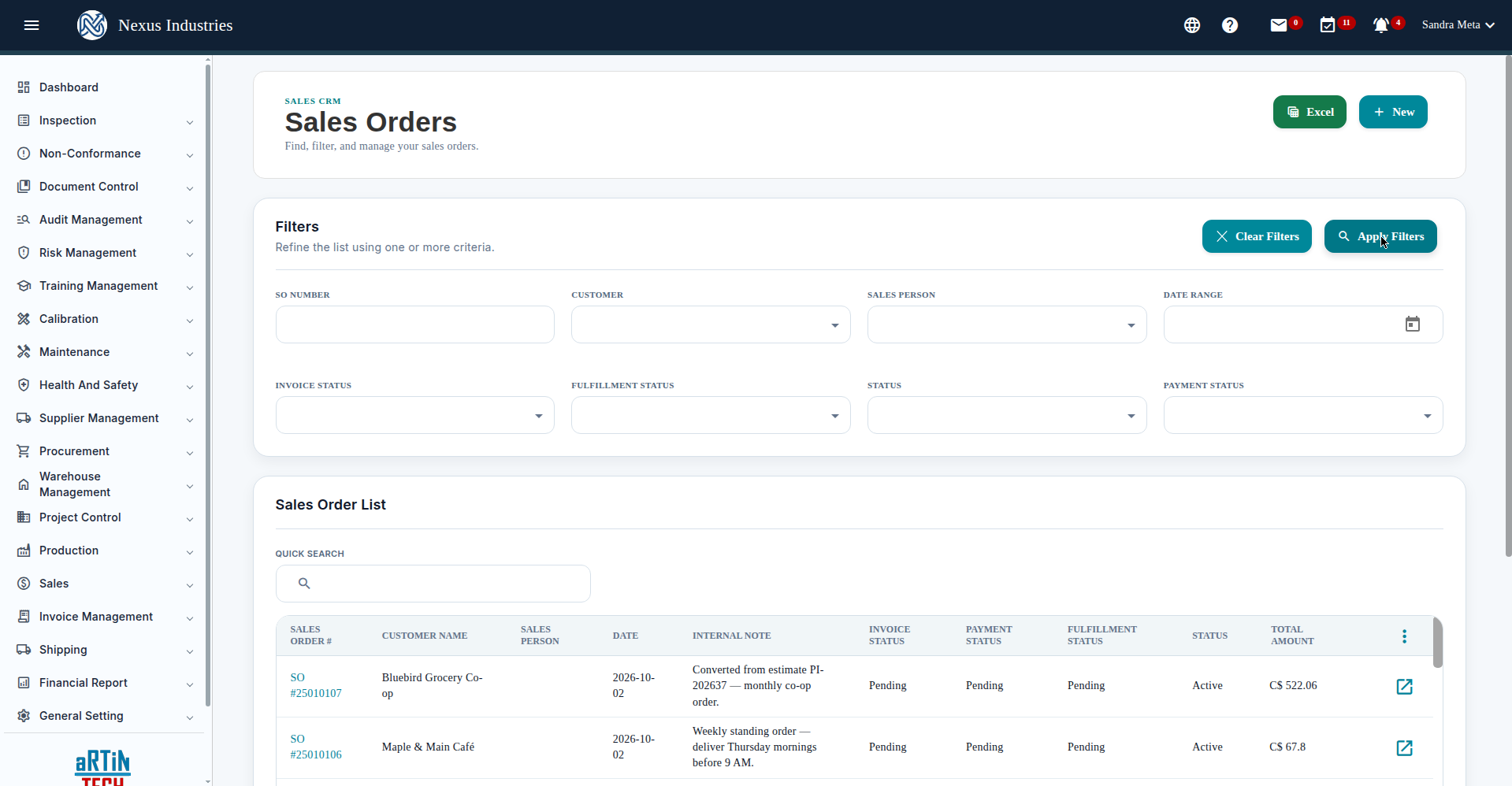
The Sales Orders list shows every order with filters (SO number), quick search, column sorting, pagination, and Excel export. Each order tracks four statuses: Document (Active), Invoice (Not / Partially Invoiced), Fulfillment (Not Fulfilled / Completed), Payment (Unpaid).
6. The full flow at a glance #
Customer (master record) → Estimate (quote with items, taxes, totals) → Create Sales Order (items carry over, Related Transactions links back) → Track (document, invoice, fulfillment, and payment statuses).