
Artintech ERP’s Non-Conformance module takes you from “we found a problem” to “it’s fixed and won’t happen again.” The flow is: report the defect as a Snag, document it in a Non-Conforming Material Report (NCMR), analyze the Root Cause / Corrective Action (RCCA), and execute a Corrective Action / Preventive Action (CAPA). This tutorial walks you through each step using realistic food-manufacturing examples.
1. Open the Non-Conformance module #
From the left sidebar, open Non-Conformance. You’ll see its sections: Snag Form, Non-Conforming Material Report, Root Cause/Corrective Action, Corrective Action/Preventive Action, and Settings.
2. Report a defect with a Snag Form #
A Snag (SNG-####) is the first record of a defect: what was found, where, and how bad it is.
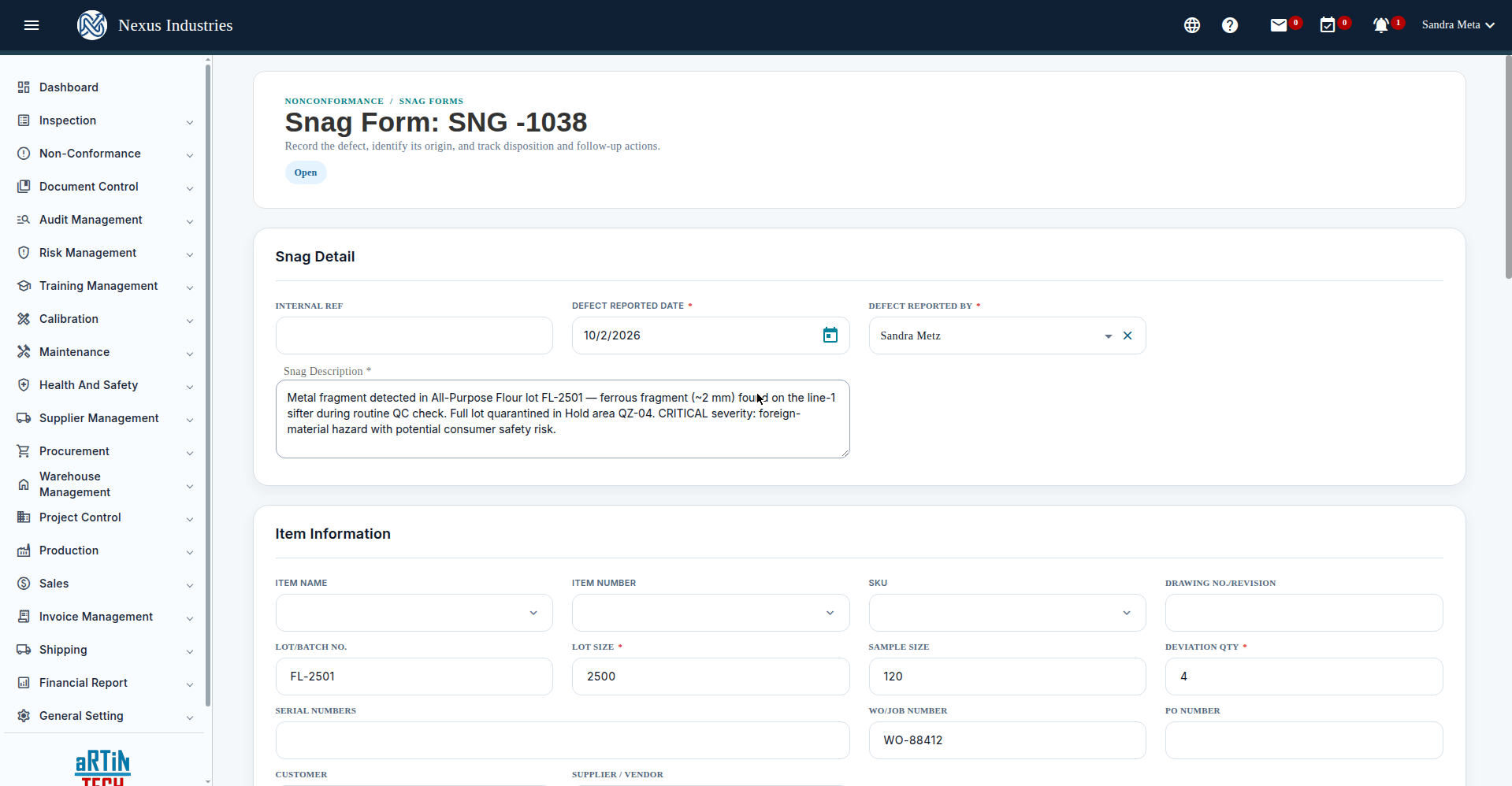
- Go to Non-Conformance → Snag Form and click New.
- Fill in: Defect Reported Date and Defect Reported By (required); Snag Description (required) — e.g. “Metal fragment detected in All-Purpose Flour lot FL-2501 — ferrous fragment (~2 mm) found on the line-1 sifter during routine QC check. Full lot quarantined in Hold area QZ-04. CRITICAL severity: foreign-material hazard with potential consumer safety risk.”; Item Information — item, Lot/Batch No., Lot Size (required), Sample Size, Deviation Qty (required), serial numbers, WO/job number.
- Click Save Draft. Note: the form gives no confirmation message, but it does save — don’t click twice or you’ll create a duplicate Snag.
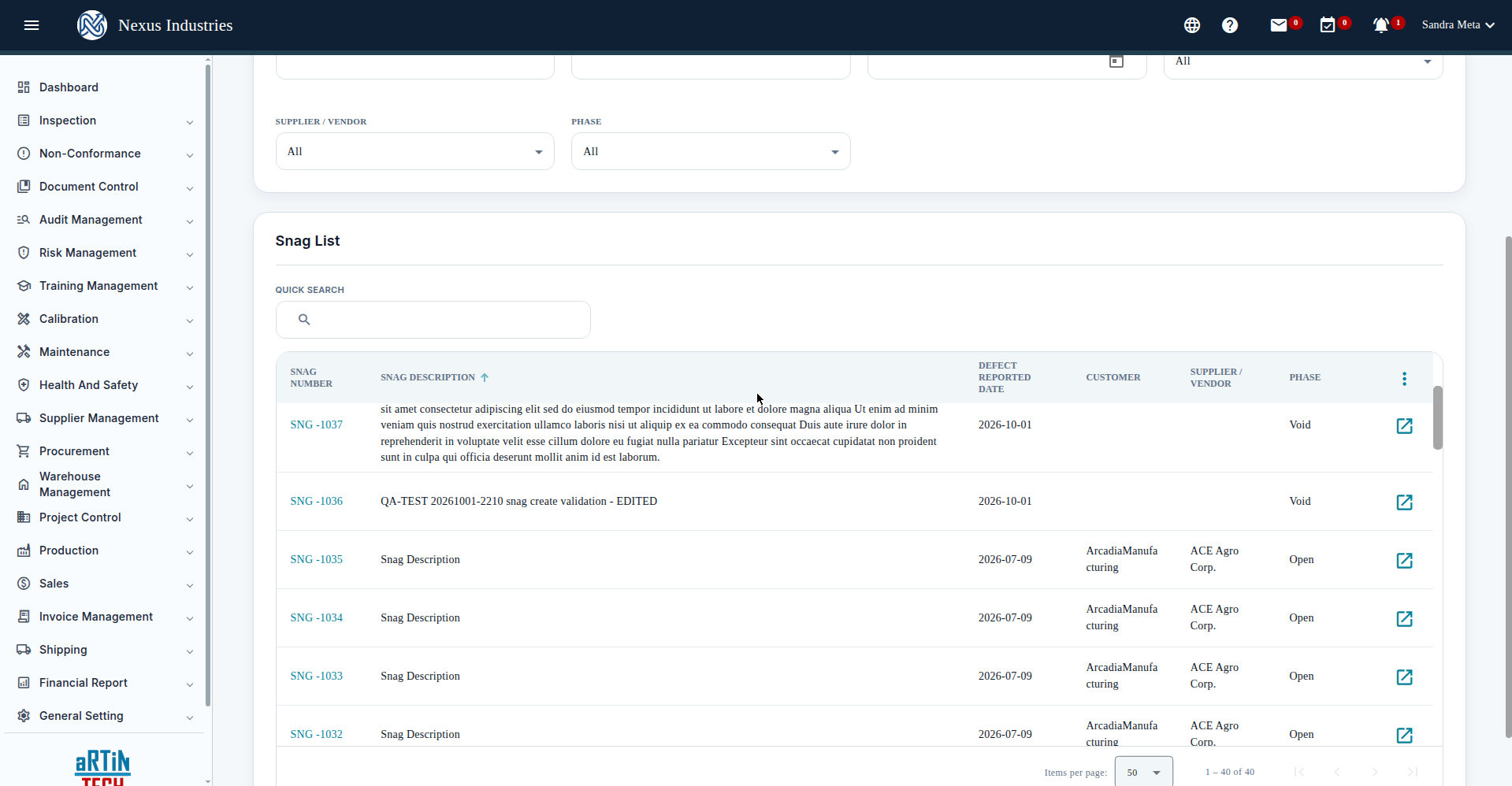
The Snag list supports quick search, filters with Apply/Clear, column sorting, and Excel export. Row actions: Detail, and Add NCR to start an NCMR from the Snag.
3. Document the non-conformance in an NCMR #
- Go to Non-Conformance → Non-Conforming Material Report and click New (create it standalone — this is the reliable path).
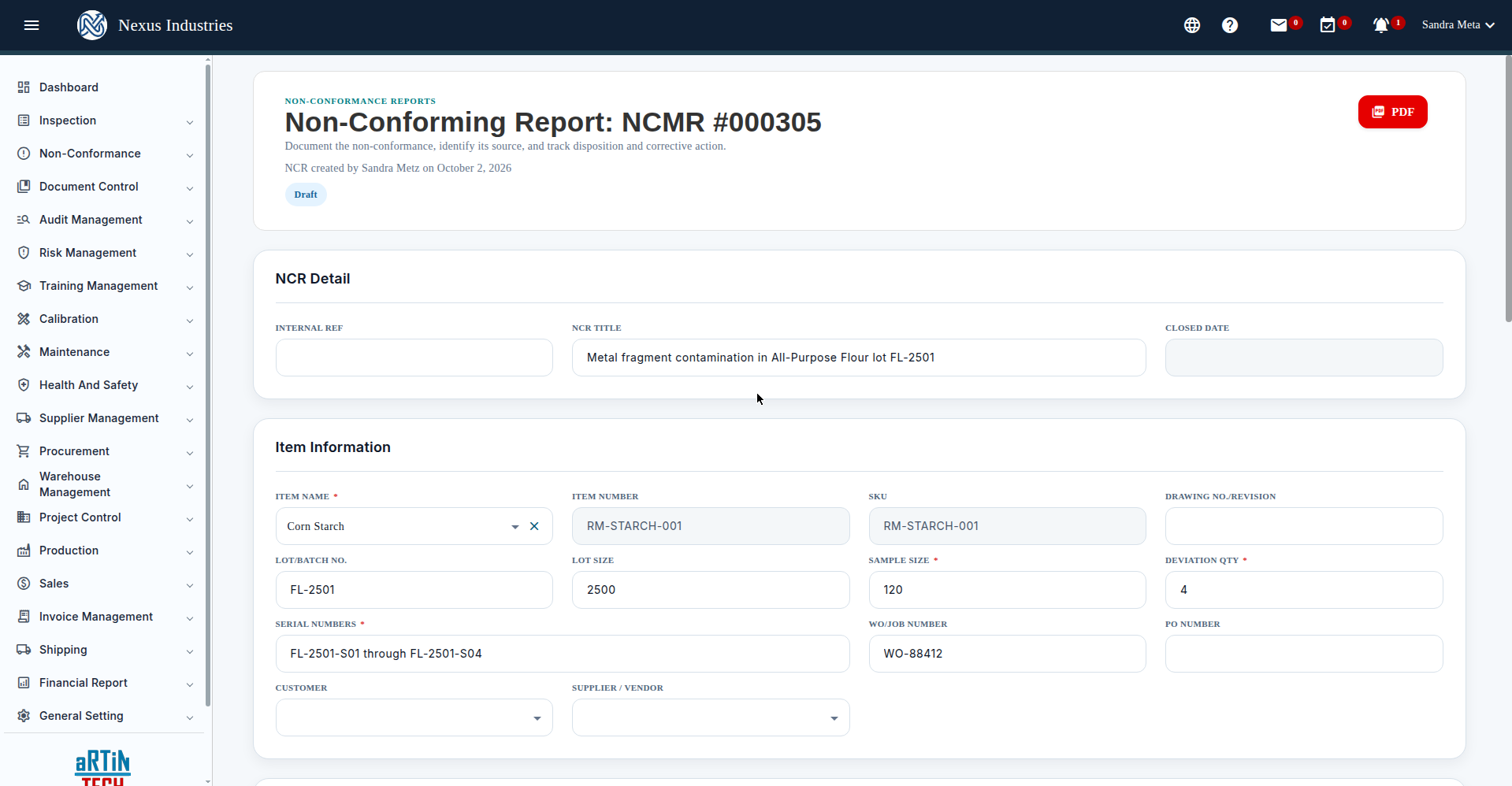
- Fill in required fields: Item Name, Sample Size, Deviation Qty, Serial Numbers, Defect Code (e.g. “Metal / Foreign Material”), NCR Severity (Minor or Major), Disposition Assigned To.
- Save as Draft. NCMR phases: Draft → Pending Disposition → Pending RCCA → Pending RCCA Approval → Closed (or Void).
Example: NCMR #000305 “Metal fragment contamination in All-Purpose Flour lot FL-2501” — sample 120, deviation 4, serials FL-2501-S01 through FL-2501-S04, severity Major.
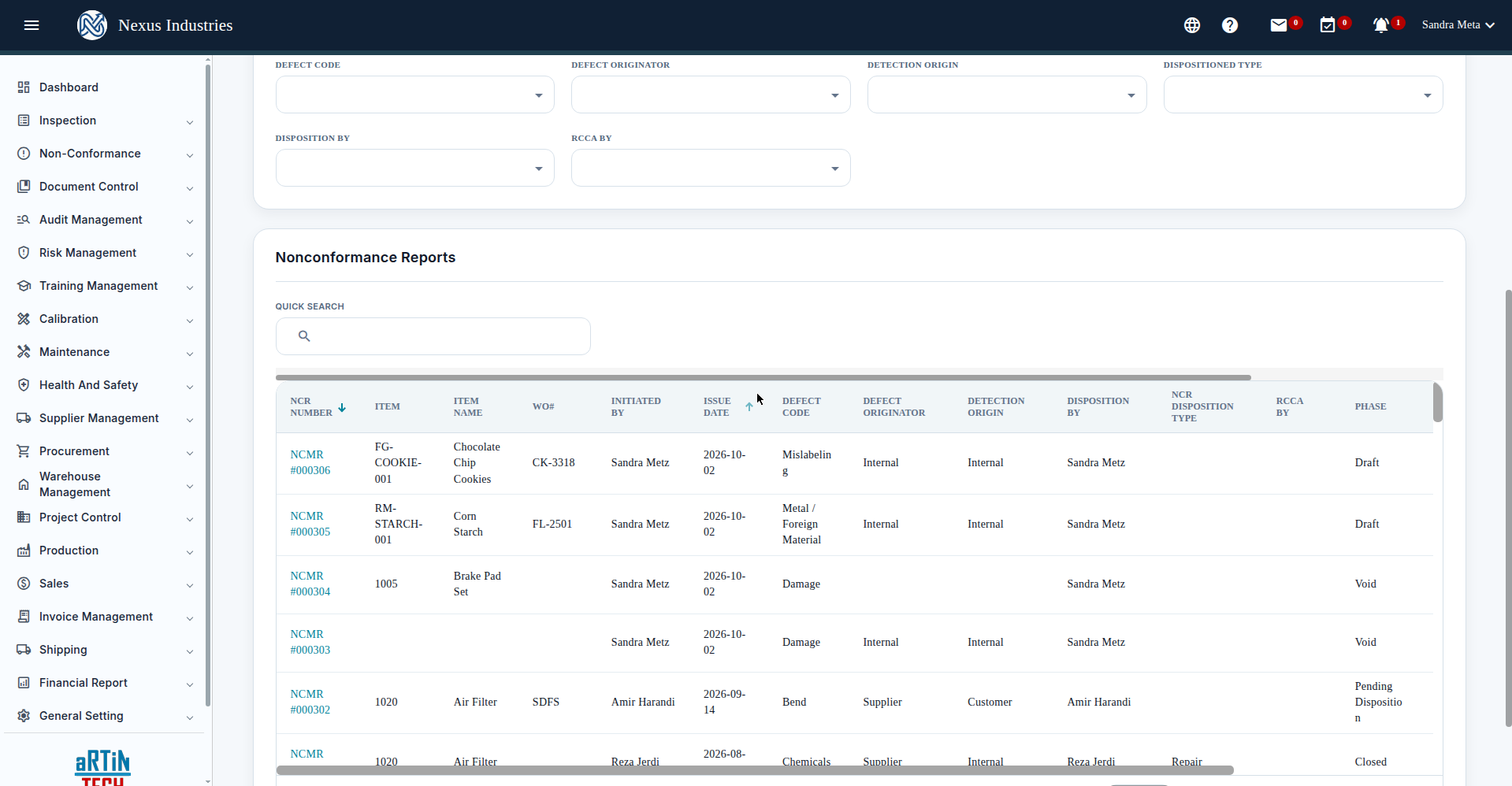
The NCMR list offers quick search, a Phase filter, sorting, pagination, and Excel export:
4. Analyze root cause (RCCA) #
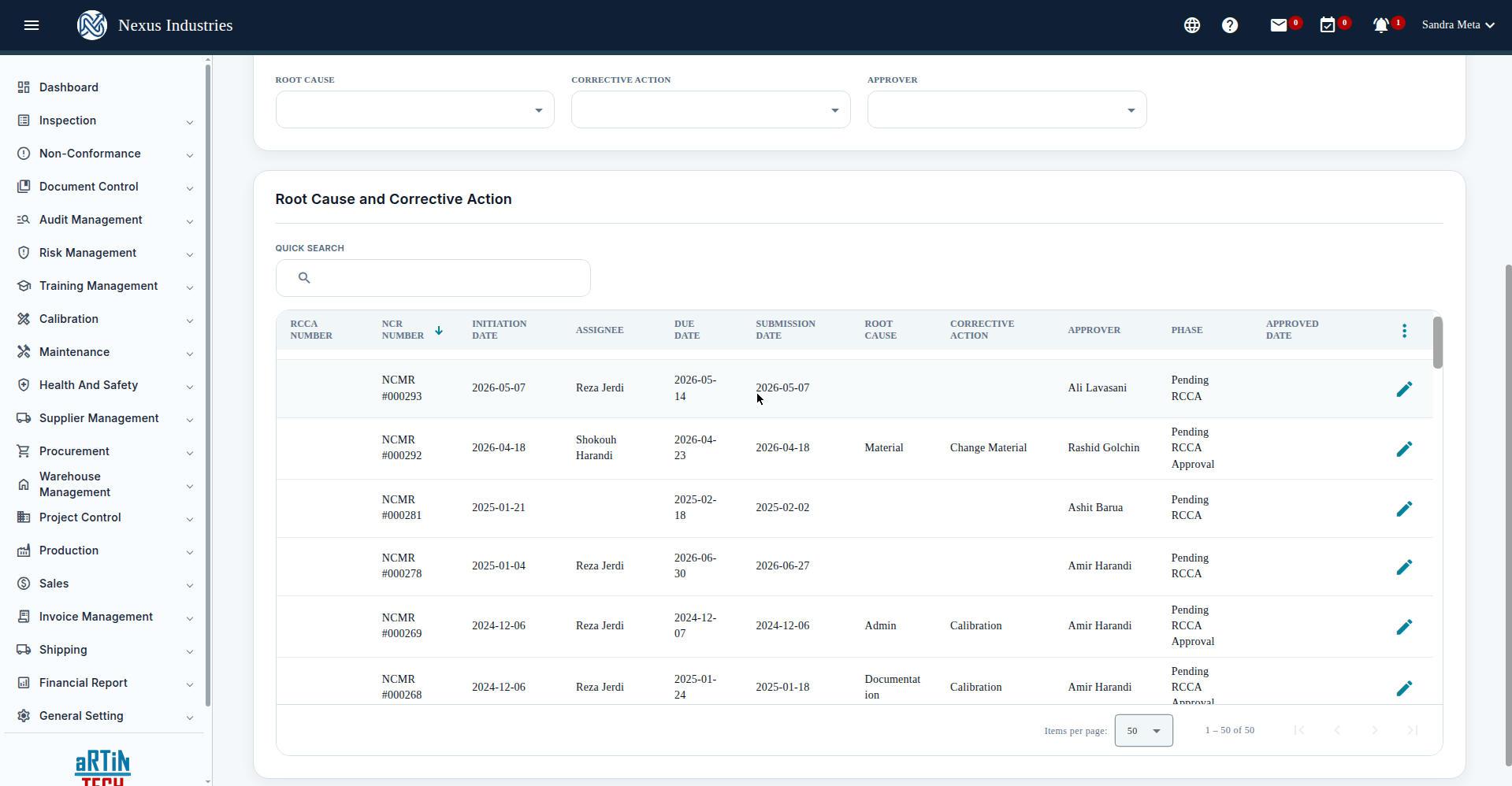
Root Cause/Corrective Action records originate from NCMRs — there is no New button here. Each RCCA captures the root cause code, root cause analysis, and the corrective action decided for its NCMR.
5. Drive it home with a CAPA #
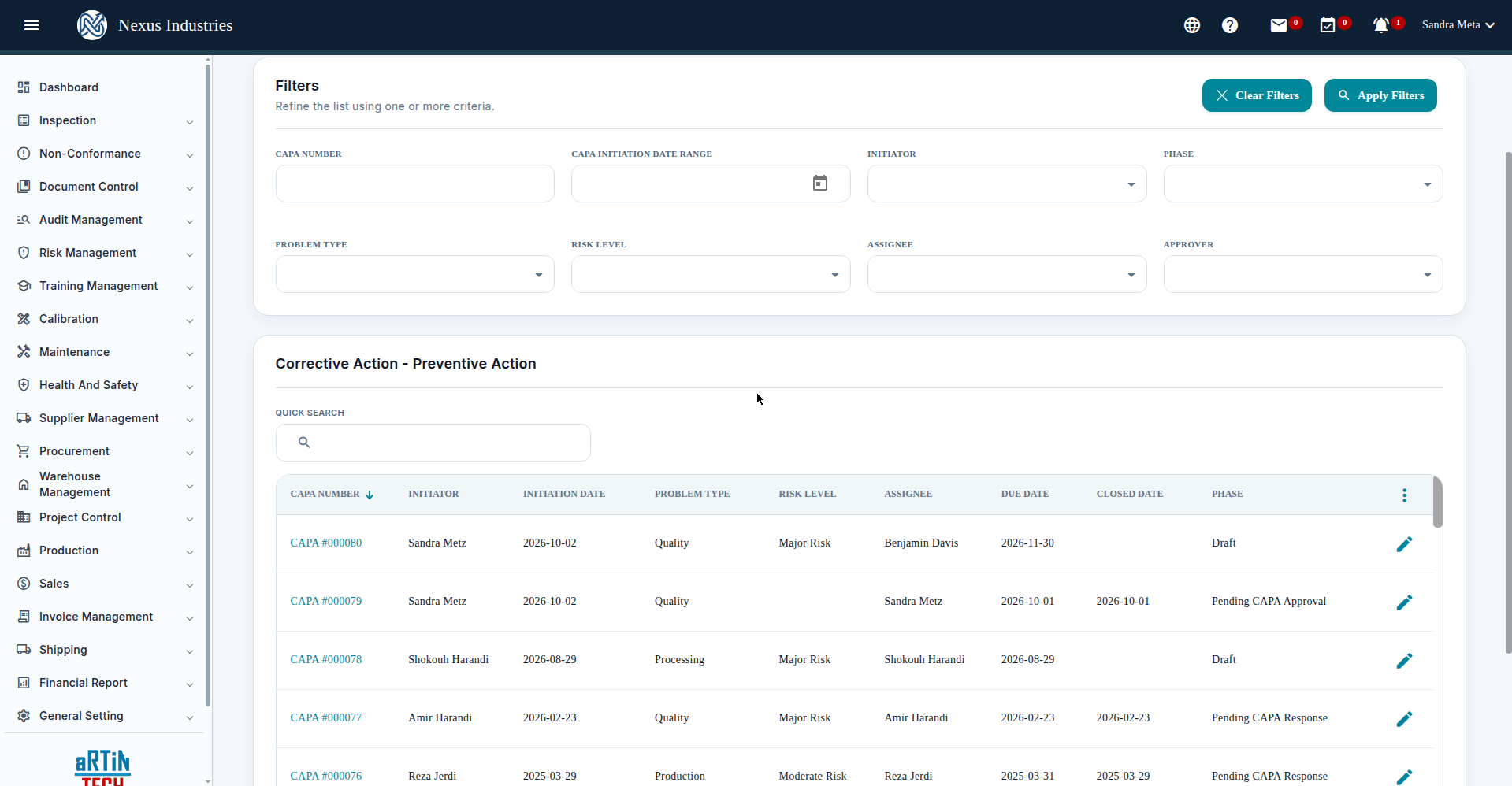
- Go to Non-Conformance → Corrective Action/Preventive Action and click New.
- Fill in: the corrective action description, e.g. CAPA #000080 “Install inline metal detector on flour packaging line”; Risk score — Likelihood × Impact (e.g. Likely (3) × Extreme (4) = 12, Major Risk); Assignee and Approver — these must be different people (the form blocks saving if they’re the same); Due date — use the calendar picker.
- Save as Draft. CAPA phases: Draft → Pending CAPA Response → Pending CAPA Approval → Closed (or Void). Fill in the response form, then submit for approval when ready.
6. The full flow at a glance #
Snag (report the defect) → NCMR (document it, assign disposition) → RCCA (find the root cause) → CAPA (fix it and prevent recurrence).
Two things to know: Void is the only delete — voided records stay in the lists with their phase set to Void, so void carefully. And if a list ever shows “No records to show” on first open, click Apply Filters to load the data.


